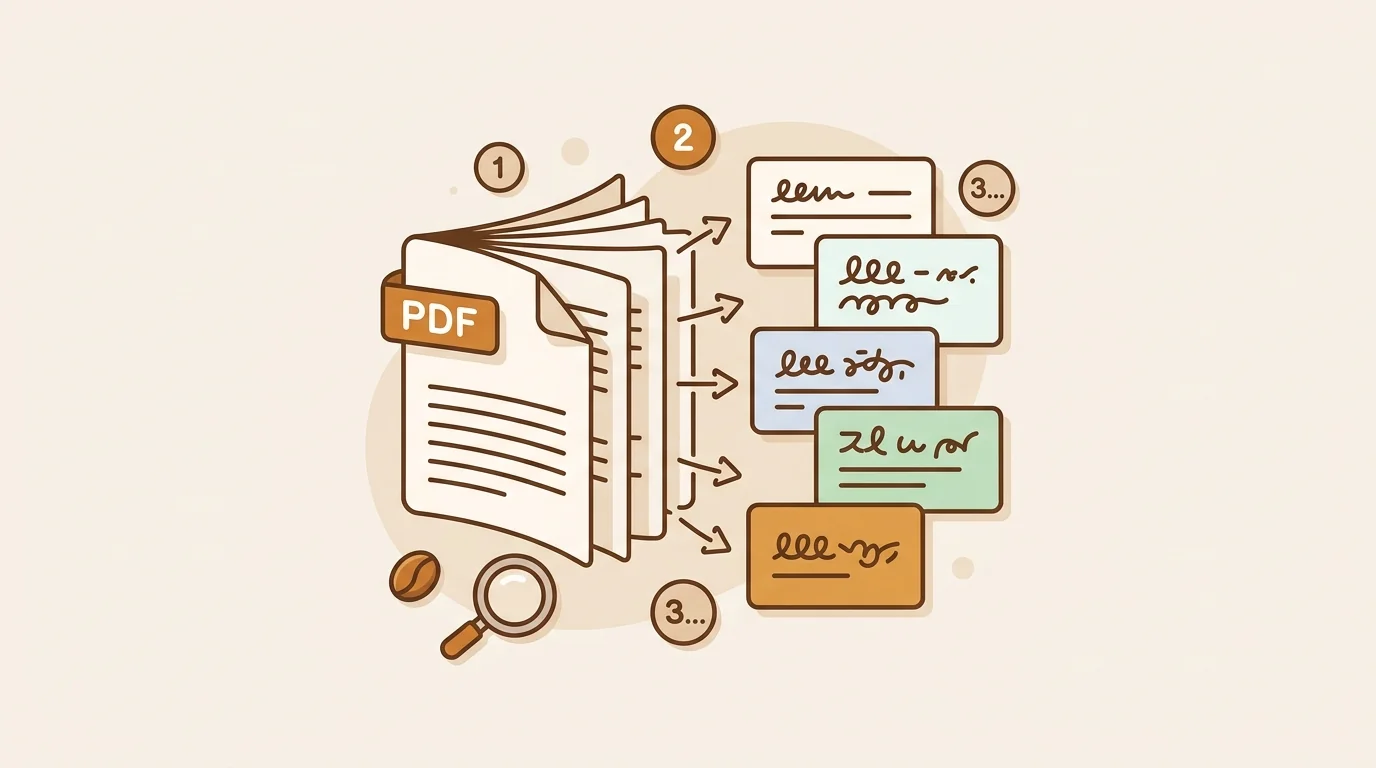
At sipsip.ai, we see PDF translation as one of the most common pain points for researchers, analysts, and students who regularly work with content in multiple languages. Most people try to copy-paste text from a PDF into Google Translate — it works, but it's slow, it loses formatting, and it completely fails on scanned documents. Here's a more complete picture of what actually works and when.
PDF translation sounds like a single problem. It's actually three different problems depending on your PDF type:
- Text-based PDFs — the text is selectable and searchable
- Scanned PDFs — the pages are images; text must be extracted via OCR first
- Complex-layout PDFs — tables, columns, charts that most translation tools mangle
The right method depends on which type you have and what you need from the translation.
Method 1 — Google Translate Document Upload (Free, Fastest)
Google Translate's document translation feature is the fastest zero-friction option for text-based PDFs.
How to Use It
- Go to translate.google.com
- Click the Documents tab at the top
- Click Browse your computer and select your PDF
- Set your source language and target language
- Click Translate
- Download the translated PDF
Google preserves basic formatting — paragraph breaks, bold text, headers — though complex multi-column layouts often break. The translated file downloads as a PDF you can read and save.
File size limit: 10MB Page limit: Generally handles documents up to ~300 pages Cost: Free
Limitations
Translation quality is acceptable for general-interest documents but noticeably degrades for technical, legal, financial, or scientific content. Google Translate is also weakest on language pairs that don't involve English as a bridge language.
It doesn't handle scanned PDFs — if the pages are images, Google Translate returns the original without translation.
Method 2 — DeepL Document Translation (Free up to 5/month, Best Quality)
DeepL consistently outperforms Google Translate on translation quality for European language pairs. Its document translation feature supports PDF, Word, and PowerPoint files.
How to Use It
- Go to deepl.com and click Translate Files
- Upload your PDF (drag and drop or browse)
- Select your target language
- Download the translated file
DeepL's free tier allows 5 document uploads per month. Translations are typically completed in 30–90 seconds.
Supported formats: PDF, DOCX, PPTX, XLSX, TXT Free limit: 5 documents/month Paid plan: DeepL Pro from $8.74/month for unlimited documents
When to Use DeepL Over Google
Use DeepL when translation accuracy matters and you're working with content in any major European language. Independent evaluations by TAUS (Translation Automation User Society) consistently rank DeepL above Google Translate for German, French, Spanish, Italian, Dutch, and Portuguese translations.
For Japanese, Chinese, Korean, and Arabic, the quality gap between DeepL and Google Translate narrows, and either is acceptable for comprehension.
Method 3 — sipsip AI (Free, Best for Understanding Content)
sipsip's Distill feature takes a different approach: instead of producing a verbatim translation that preserves every sentence, it extracts and translates the key content — summary and key points — in your chosen language.
How to Use It
- Go to sipsip.ai and sign in (free tier available)
- Navigate to the Distill page
- Click Upload files and select your PDF
- Set your Output language using the dropdown (16 languages supported)
- Submit — you'll receive translated summary and key points in under 60 seconds
When sipsip is the Right Choice
sipsip is optimized for content comprehension, not verbatim reproduction. If your goal is to understand a foreign-language research report, industry analysis, or academic paper — extract its findings and conclusions — sipsip is faster and more useful than full document translation.
[PERSONAL EXPERIENCE] We routinely use sipsip internally to process Japanese and Korean tech industry reports. A 40-page Japanese market analysis takes roughly 45 seconds to process and returns 8–12 translated key points that capture the material findings. Reading the verbatim translation of the same document would take 90 minutes. For triage and research workflows, the distillation format saves hours per week.
Supported file types: PDF, EPUB, TXT, MP3, MP4, WAV (and YouTube/podcast URLs) Output languages: 16 languages including Chinese, Japanese, Korean, Arabic, Hindi Free tier: Available
sipsip for Scanned PDFs
[UNIQUE INSIGHT] sipsip handles scanned PDFs automatically through its OCR pipeline. You don't need to manually run OCR before uploading — the processing layer identifies image-based pages and extracts the text content before translation. This makes it the simplest option for research papers, older documents, or any PDF that was produced by scanning a physical document.
Method 4 — Adobe Acrobat (Best for Preserving Layout)
Adobe Acrobat Pro and Acrobat Reader (via the online tools) include a translation feature powered by machine translation. The main advantage is layout preservation — Acrobat understands PDF structure better than general-purpose translation tools.
How to Use It
In Acrobat Pro:
- Open your PDF in Acrobat Pro
- Go to Tools → Translate
- Select your target language
- Acrobat produces a translated version with the original layout preserved
Online (no Pro subscription required):
- Visit acrobat.adobe.com
- Upload your PDF using the online tools
- Use the translate function available in the cloud version
Cost: Acrobat Pro is $19.99/month. The online Adobe tools offer limited free usage.
When to Use Adobe
Use Adobe when you need the translated document to look like the original — same fonts, columns, tables, page numbers. For formal reports, presentations, or any document you'll share externally, layout preservation matters. Neither Google Translate nor DeepL handles this as well as Acrobat for complex layouts.
Adobe also handles scanned PDFs better than most tools, because its OCR capability is built into the same application — no external step required.
Method 5 — Manual Copy + DeepL or Claude (Best for Small Sections)
For short documents or specific sections of a longer PDF, manual copy-paste into a translation tool is often faster than setting up a document upload workflow.
How to Use It
- Open your PDF in a reader that allows text selection (most modern PDFs)
- Select and copy the text you need translated
- Paste into DeepL's web interface, Google Translate, or prompt Claude with "Translate this to [language]: [text]"
- Copy the translated output
This method gives you the most control over translation quality — you can see the output immediately, adjust phrasing, and handle formatting yourself.
Limitation: Doesn't work for scanned PDFs (text selection isn't available). Also impractical for long documents.
Which Method to Use: Decision Guide
| Your Situation | Best Method |
|---|---|
| Text-based PDF, need full document translation | Google Translate (free) or DeepL (best quality) |
| Need to understand the key findings quickly | sipsip.ai (summary + key points in 16 languages) |
| Scanned PDF or image-based pages | sipsip.ai (auto-OCR) or Adobe Acrobat Pro |
| Need to preserve original layout | Adobe Acrobat |
| Translating a short section only | Manual copy + DeepL or Claude |
| Document in Japanese, Korean, Arabic, Chinese | sipsip.ai (strongest multilingual support) |
According to Statista's 2025 Global Translation Services Market report, the global translation market reached $67 billion in 2025, with AI-assisted translation now accounting for the majority of all translated content volume. The tools available for free today would have cost thousands of dollars from professional services a decade ago.
Start translating PDFs for free at sipsip.ai — upload your document and select your output language on the free tier.
Wendy Zhang is the founder of sipsip.ai. She writes about AI tools, content consumption, and the infrastructure behind knowledge work.
Frequently asked questions

With a background spanning advertising and internet, I've launched 8+ apps and built 10+ products across mobile, web, and AI. Now I'm building a system that extracts signal from noise — turning fragmented information into clear, actionable decisions.