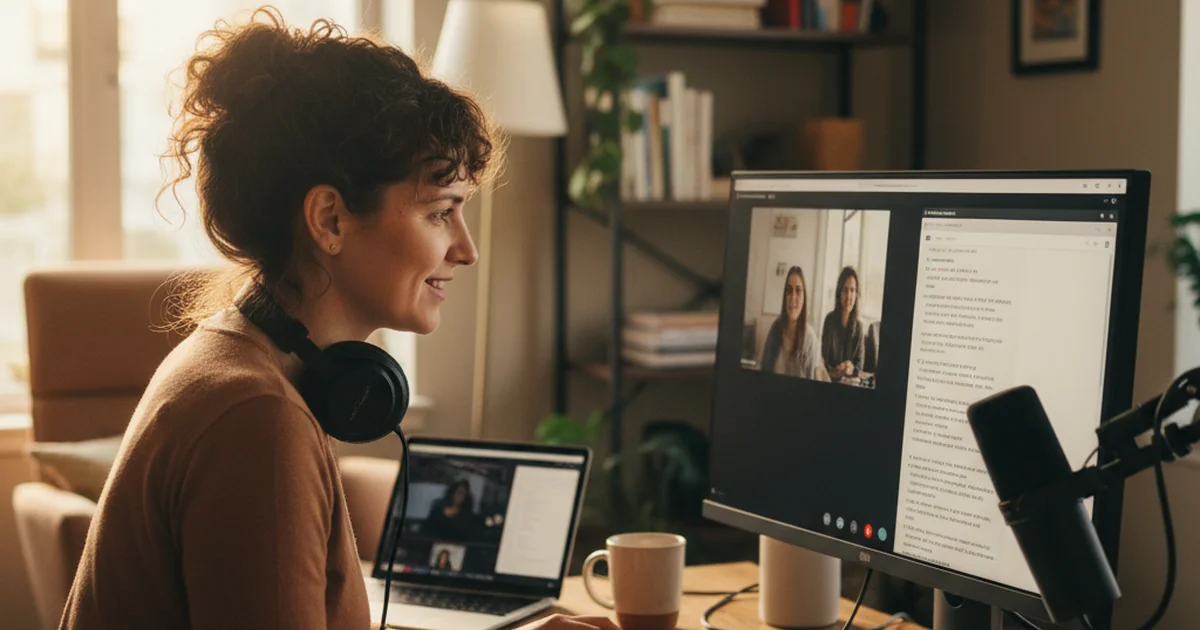
I host a weekly interview podcast. Every conversation happens over Zoom. For the first two years, I spent an hour after every recording replaying the audio, stopping and starting, trying to pull out the exact quotes I needed. Then I found a better way: record the Zoom meeting, upload it to sipsip's Transcriber, and have a full transcript waiting for me before I've even finished my coffee.
Knowing how to record a Zoom meeting properly is the foundation of my whole editing workflow. Get the recording right, and everything downstream — transcript, show notes, pull quotes — becomes fast. Get it wrong, and you're stuck with 60 minutes of audio and no searchable text.
Here's exactly how I do it.
Why I Record Every Interview Over Zoom
I've tried other setups. I tried recording locally with Audacity while the call happened on my phone. I tried a hybrid rig where I was capturing my side clean and hoping my guest's side came through okay. Both worked sometimes. Neither worked reliably.
Zoom gives me a single MP4 file with both sides of the conversation recorded, time-synced, with reasonable audio quality even when my guest is on a laptop microphone in a noisy kitchen. That reliability matters more to me than marginal audio quality gains from a complicated split-track setup. I can fix audio. I can't reconstruct a conversation I didn't capture at all.
According to Zoom's published platform data, more than 300 million daily meeting participants use the platform — making it the most widely available common denominator for remote interviews, regardless of a guest's technical setup.
When I started treating Zoom as my recording tool rather than just a video call tool, the whole workflow clarified.
The Exact Steps I Use to Record
Before the call: I go to my Zoom account settings and confirm local recording is enabled. It's under Settings > Recording. I also check that the save location is a folder I actually monitor — early on I spent ten minutes looking for recordings that were saving to a default folder I'd never opened.
At the start of the call: I hit Record immediately after my guest joins. Not after we've done two minutes of sound check. Immediately. More than once I've had a guest say something quotable during what felt like warmup, and I was glad I had it captured.
I use Alt+R on Windows (or the Record button in the toolbar) and confirm the local recording indicator appears at the top of the screen. That little red dot is one of the most reassuring things I see during a recording session.
During the call: I mostly forget the recording is happening. That's the point. Zoom handles it in the background while I focus on the conversation. The only time I intervene is if I notice the recording indicator has disappeared — which can happen if Zoom crashes and restarts, though that's rare.
After the call ends: Zoom automatically processes the recording and converts it to MP4. Depending on call length, this takes 1–5 minutes. The file lands in my designated folder. A 60-minute interview typically produces an MP4 around 800MB–1.2GB.
How I Get From Recording to Transcript
This is the part that changed my workflow completely.
Once the MP4 is ready, I upload it directly to sipsip's Transcriber. No audio extraction, no format conversion — the MP4 uploads as-is. The tool pulls the audio track and processes it.
For a 60-minute interview, the transcript is usually ready in under 10 minutes. I get a full timestamped transcript plus a structured summary with key points. I read the summary first — it tells me the shape of the conversation, the moments that land, the quotes worth using. Then I use the full transcript as a searchable reference when I'm writing episode notes or cutting clips.
Before sipsip, my post-recording routine looked like this: listen back to the full interview, take notes on a legal pad, replay sections I wanted to quote verbatim, type those quotes manually. Two hours of work per episode.
Now it looks like this: upload the MP4, read the summary while it processes, open the transcript and search for keywords when I need a specific quote. Thirty minutes per episode, if that.
Research from the Reuters Institute for the Study of Journalism (2024) found that podcast and audio journalists who use automated transcription spend 60–70% less time on post-production tasks compared to those relying on manual methods — a difference that compounds significantly across a season of weekly episodes.
What I've Learned About Recording Quality
The transcript quality is only as good as the audio quality. A few things I've figured out through trial and error:
Tell guests to use headphones. Echo from speakers feeding back into a microphone degrades the audio in ways that hurt transcription accuracy. A simple pair of earbuds makes a real difference.
Mute yourself when you're not speaking. Your background noise bleeds into the recording even when your guest is talking. Keeping your mic muted during long answers keeps the audio track cleaner.
Record audio-only if bandwidth is an issue. If a guest has a poor connection and the video is stuttering, switching to audio-only often stabilizes the call and improves the audio quality. I've had better-sounding recordings from audio-only sessions than from choppy video calls.
Local recording is more reliable than cloud recording for my purposes. Cloud recording through Zoom requires a paid plan, and the audio quality settings are controlled by Zoom's servers. Local recording gives me the raw file and control over where it goes. For podcast quality, local is fine.
The Workflow at Scale
I publish 45–50 episodes a year. Before this workflow, the post-production burden was significant enough that I'd sometimes delay publishing just because I didn't have energy for the review session. Now there's no review session in the old sense. There's a 30-minute edit pass and done.
The recordings also give me a searchable archive. Two months after an interview, if I'm writing something and I half-remember a point a guest made, I can search the transcript instead of hunting through audio. That alone has saved hours I can't quantify.
If you're running any kind of interview format — podcast, research calls, client sessions, journalistic interviews — and you're not recording Zoom meetings with automatic transcription, you're doing the hardest version of the job.
Try it yourself: Upload your next Zoom recording to sipsip.ai and have a full transcript ready before you finish your post-call notes. The first 20 transcriptions are free, no credit card required.
Explore More
Related Article
How to Transcribe a Podcast Episode Free (Any Format, Any Source)
Related Article
Audio Transcription Complete Guide — Formats, Accuracy, Use Cases
Related Article
Best AI Note-Taker Apps in 2026 — Tested for Meetings and Interviews
Frequently asked questions

Noah Hughes records every podcast interview over Zoom and uses sipsip to get an automatic transcript — no manual note-taking, no missed quotes, just a clean text file ready to edit.