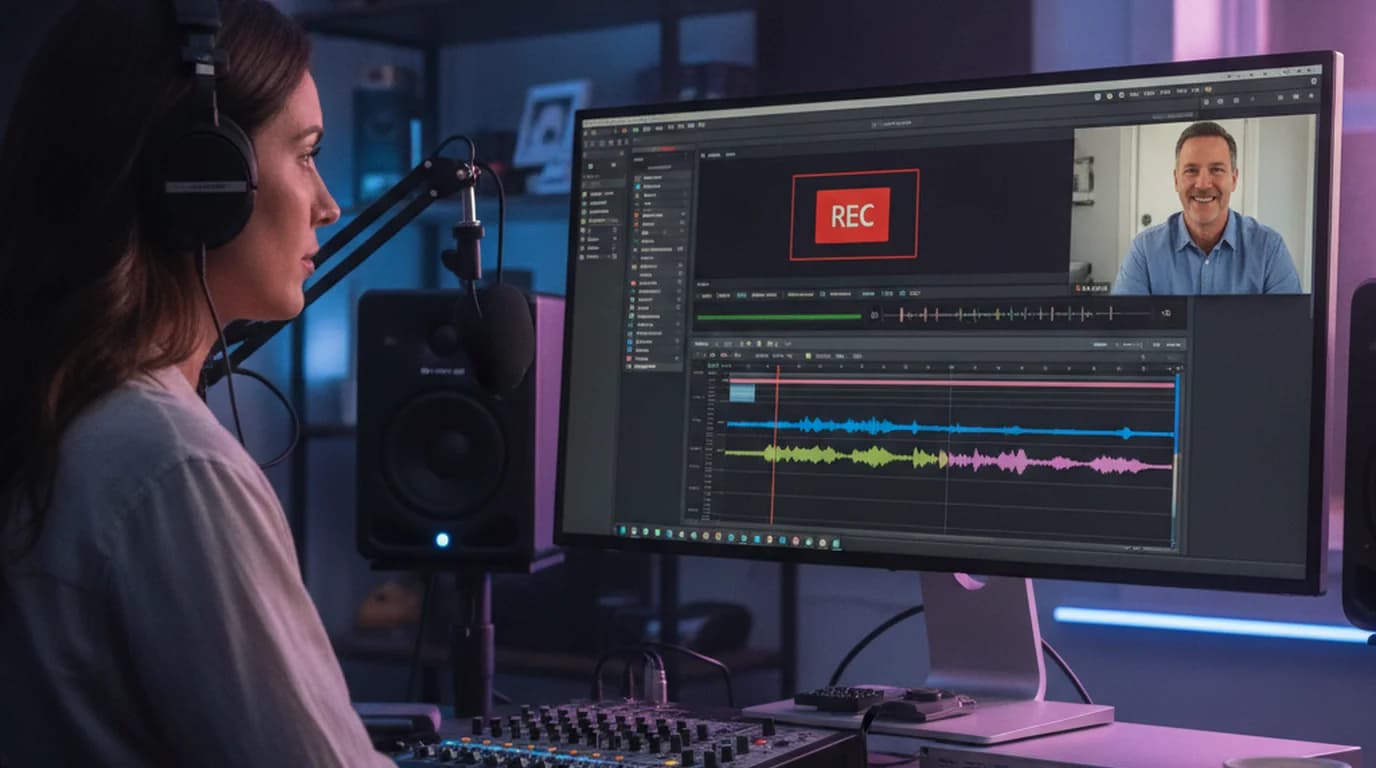
I've been doing freelance video production for eight years. The moment I started recording every client call and briefing was the moment I stopped having disputes about what was agreed. Screen recording on Mac is my baseline protection — and the transcripts I generate from those recordings are how I actually manage projects.
Why I Record Everything
Video production projects involve a lot of verbal decisions that nobody writes down. A client says "let's make the opening more punchy" on a call, then asks why the opening was changed in the revision. A brief gets updated verbally but the document doesn't get revised. Scope creep happens through conversations, not emails.
I record every call. The recording is timestamped evidence of what was said. The transcript is the searchable, quotable version I use for project management.
My Mac Screen Recording Setup
For Zoom and Google Meet calls: I use the platform's built-in recording. Zoom → Record → Record to this Computer. The output is an MP4 with both sides of the conversation. This is simpler than QuickTime and doesn't require any audio routing.
For calls on platforms that don't have recording (some Google Meet accounts, FaceTime, phone calls via Mac): I use QuickTime with BlackHole for system audio capture.
The BlackHole setup for capturing system audio:
- Install BlackHole (free, open source)
- Open Audio MIDI Setup → click + → Create Multi-Output Device
- Check both your headphones/speakers and BlackHole 2ch
- Set this Multi-Output Device as your system audio output
- In QuickTime → New Screen Recording → set Microphone to BlackHole 2ch
- Now QuickTime captures everything playing through your speakers (the client's voice) plus your mic
For client presentations I'm delivering: I record myself presenting so clients can re-watch the presentation without needing me on a follow-up call. Shift+Command+5 → Record Entire Screen → with my mic as audio input.
Getting the Transcript
After every recorded call, I upload the video file to sipsip.ai's transcriber. I don't need to extract audio first — it takes the QuickTime .mov or Zoom .mp4 directly.
For a 45-minute client call:
- Upload time: 20–30 seconds
- Processing time: approximately 5 minutes
- Output: full timestamped transcript + AI summary of what was discussed
The AI summary alone saves me 10 minutes — it gives me the key decisions and action items from the call without reading the full transcript. I read the full transcript when I need to verify the exact wording of something.
"A client disputed a scope change three weeks into a project. I pulled up the transcript, searched for 'additional' and found the timestamp where they verbally agreed to the added deliverable. That was the last scope dispute I've had."
— Liam Carter
Related Article
Zoom Transcription: How to Automatically Transcribe Every Meeting
How I Organize the Transcripts
Every client has a folder. Inside: one subfolder per project. Inside each project folder:
calls/— one transcript per recorded call, named by datebriefs/— the official written brief (plus transcripts of any verbal brief sessions)approvals/— email chains and transcript excerpts confirming scope
When a client asks "didn't we discuss X?", I open their folder and search. The answer is in the transcripts.
For long-term client relationships, this archive becomes genuinely useful — I can search across 2 years of calls to find when we first discussed a direction, what was agreed at the beginning of a retainer, or what the original brand guidelines specified before they changed.
For Multi-Camera and Screen Share Calls
When clients share their screen during briefings (showing me their existing brand assets, website, competitor references), I record both the screen share and the conversation. QuickTime records whatever is displayed on my screen — so if they're sharing their screen into a Zoom window that I'm screen recording, I capture it all.
The transcript covers the audio, but I also keep timestamps of key visual moments in my notes — "at 12:34 client showed the competitor's color palette they disliked." The timestamp in the transcript anchors the visual reference.
Related Article
How to Automatically Summarize Meeting Recordings With AI
Liam Carter is a video production specialist working with marketing teams and creative agencies on brand video, product launches, and documentary content. He uses sipsip.ai to transcribe all client call recordings as part of his project documentation workflow.
Frequently asked questions

As a video production specialist, I record every client call, brief, and presentation — both to protect myself and to reference exactly what was said. Getting those screen recordings into searchable, quotable text is the part most people don't have a good system for.