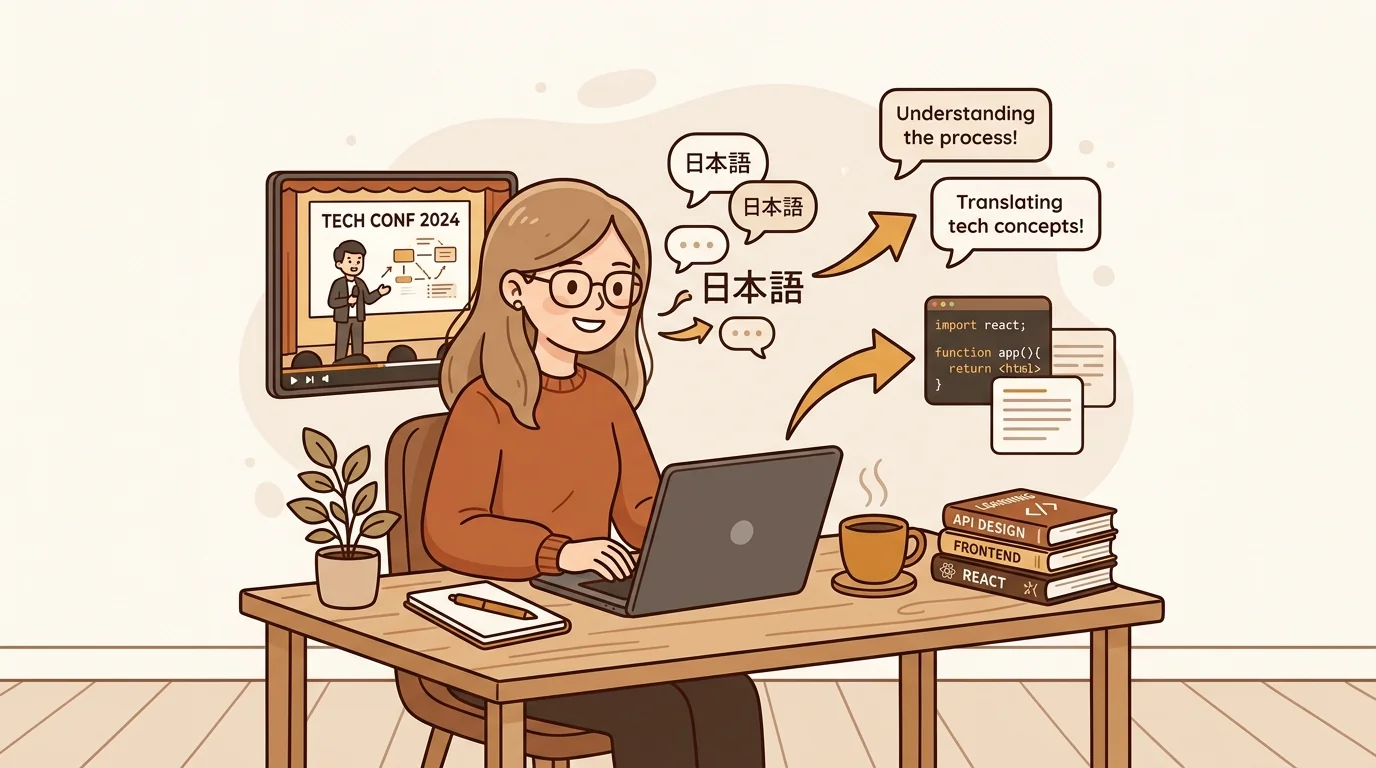
I work as a backend developer in Seoul. My English is functional for reading documentation and writing code comments, but for months I struggled to follow conference talks at full speed. Someone at work mentioned watching tech talks on YouTube to improve listening comprehension. I tried it. I understood maybe 60% on a good day, less when the speaker had an accent I wasn't used to.
The thing that actually moved the needle for me was learning to do a proper YouTube to transcript conversion before I watched anything. Once I had the text, the whole experience changed — I could read while I listened, look up phrases in context, and go back to the exact sentence that confused me. I want to write up the specific workflow I settled on, because it took me a few months to get right.
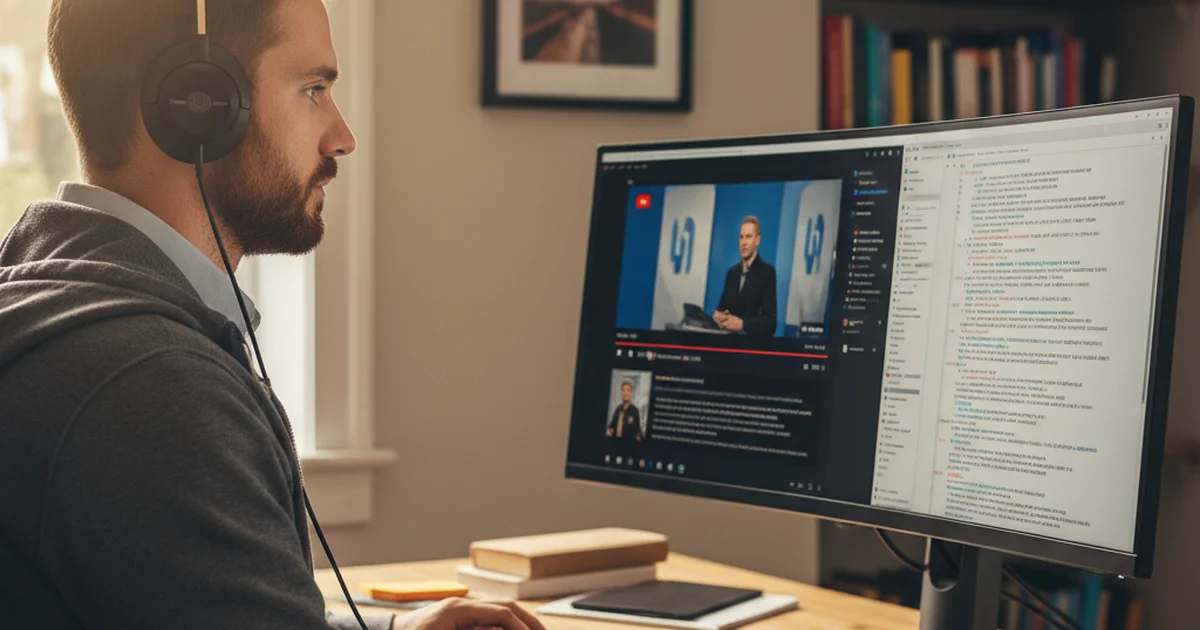
Why I Needed Transcripts, Not Just Subtitles
YouTube has auto-generated captions, and I used to rely on those. The problem is they're not reliable for learning. They're designed for accessibility — displaying a few words at a time in sync with speech — not for reading, studying, or searching later.
What I actually needed was a full document. Something I could open in a separate window, search with Ctrl+F, copy sentences from, and annotate. YouTube's caption display doesn't give me that. You can technically access a transcript through YouTube's three-dot menu on some videos, but it only appears on videos where the creator enabled it, and the formatting is a wall of text with no punctuation.
I also found that about a third of the tech talks I wanted to study — older conference recordings, regional meetups, smaller channels — had no captions at all.
The Tool I Use: sipsip.ai Transcriber
After testing several options, I landed on sipsip.ai's transcriber. The workflow is straightforward: I paste the YouTube URL, wait roughly 30–60 seconds depending on video length, and I get back a timestamped transcript I can read, copy, or download.
What matters to me specifically:
- Timestamps on every paragraph — when I hear something confusing while watching, I can find the exact moment in the transcript
- Punctuation in the output — YouTube's own transcript tool gives you raw captions with no commas or periods; sipsip.ai produces readable sentences
- Works without captions — it transcribes directly from audio, so older videos and uncaptioned content work the same way
I mainly watch talks from Strange Loop, QCon, and PyCon. Many of those recordings are several years old. The speaker audio quality varies a lot. So far the transcriptions have been accurate enough that I can follow along and only occasionally hit a word I need to look up.
My Actual Study Workflow
Here is what I do for each talk I want to study seriously:
Step 1 — Generate the transcript first. Before I watch anything, I paste the URL and get the transcript. I open it in a plain text editor next to my browser.
Step 2 — First pass: read without watching. I read through the transcript once cold. I mark any phrases I don't understand — idioms, technical terms used in an unfamiliar way, sentences that are structurally confusing to me. This takes maybe 10–15 minutes for a 40-minute talk.
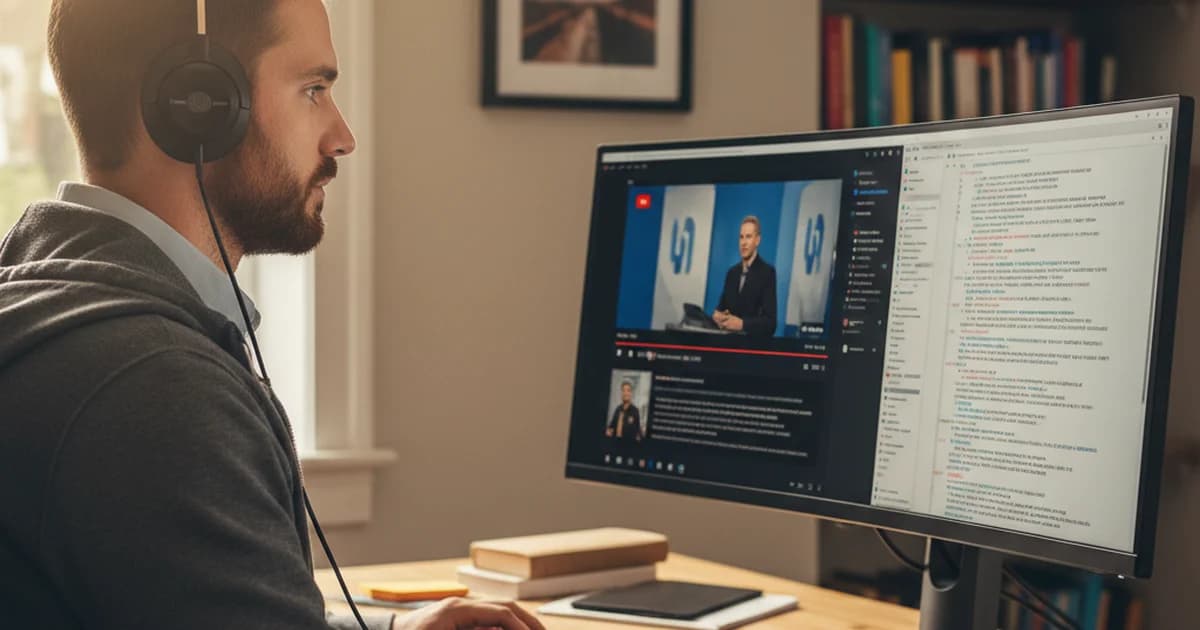
Step 3 — Watch with the transcript open. I play the video at 0.75x speed with the transcript open. When the speaker says something I marked, I stop, look at the sentence again, and think about how the spoken rhythm matches what I read. This is where the comprehension actually improves — I'm connecting written English to spoken English at the same moment.
Step 4 — Extract the 5–10 sentences I want to keep. After watching, I copy the most useful sentences into a notes file — things like good ways to explain a technical concept, idioms I've never heard before, phrasing I want to use when writing in English. I have about 300 of these now across different talks.
Step 5 — Review the notes file once a week. I re-read all my collected sentences on Sunday. This is where the vocabulary actually sticks.
The whole thing works because the transcript makes the talk searchable and copyable. Without that, steps 2 and 4 are impossible.
Citation Capsule: A 2023 study published in the journal Language Learning & Technology found that learners who combined audio input with simultaneous reading of a matching transcript showed 34% better recall of new vocabulary after one week compared to audio-only learners. The researchers attributed this to dual-channel encoding — when the same information enters through both the visual and auditory systems at the same moment, it forms stronger memory traces. (source: LLT Journal)
What I Learned About YouTube Transcripts Generally
A few things surprised me when I started doing this consistently.
First, YouTube's built-in transcript tool is more limited than most people realize. It only appears on videos where the creator has enabled captions, either manually or through YouTube's auto-caption system. For a lot of older or niche content, there's nothing there. Even when it does appear, the output is unsegmented — every spoken word runs together without punctuation, which makes it nearly useless for reading.
Second, the quality of auto-captions on YouTube is also inconsistent for non-native speakers or speakers with regional accents. I've watched conference talks by Indian or Australian engineers where YouTube's auto-captions were clearly wrong 20–30% of the time. The transcription from sipsip.ai handles these better in my experience, though it's not perfect either.
Third, the timestamp feature matters more than I thought it would. When a talk is 45 minutes long and I want to find the moment where the speaker explained a specific concept, Ctrl+F on the transcript gets me close, and then the timestamp tells me exactly where to jump in the video.
Citation Capsule: According to the EF English Proficiency Index 2024, which surveyed 2.2 million adult learners across 113 countries, professionals who consumed at least three hours per week of English-language technical media — including conference talks, tutorials, and podcasts — improved their proficiency score by an average of 4.1 points over 12 months, compared to 1.8 points for those who studied grammar and vocabulary exercises alone.
What I'd Tell Another Developer Learning English
If you're in a similar situation — technically competent, able to read English documentation, but struggling with listening comprehension in real speech — the YouTube transcript workflow is the most concrete thing I can point to that actually helped.
The core principle: don't try to improve your listening by only listening. Pair the audio with the text every time. Read first, then watch. Keep the transcript open. Copy the sentences that matter to you. Review them later.
You don't need anything complicated. You need a reliable way to convert YouTube to transcript so you have a working document to study from. Everything else is reading and repetition.
Frequently Asked Questions
How to get lyrics from a YouTube video?
Most YouTube videos don't have lyrics embedded — you need a transcript tool. Paste the YouTube URL into sipsip.ai's transcriber and it returns a full text transcript in under a minute. For music videos where auto-captions are off or inaccurate, the audio transcription engine still picks up the spoken or sung words and timestamps them.
Why can't I see the transcript on YouTube?
YouTube's built-in transcript feature only appears when the video owner or YouTube's auto-caption system has enabled captions. Many videos — especially older uploads, non-English content, or videos where the creator turned off captions — won't show the transcript button at all. A third-party tool like sipsip.ai works directly from the audio, so it doesn't depend on YouTube's caption availability.
How do I copy a YouTube transcript to Word?
Generate the transcript with a tool like sipsip.ai, then select all the text in the transcript view and copy it. Paste it into Word and it comes in as plain text. From there you can format it, add highlights, or use Word's translation features. If you want timestamps included, most transcript tools let you toggle that before you copy.
How to convert a YouTube video to a text?
Paste the YouTube video URL into sipsip.ai's transcript tool, wait about 30–60 seconds depending on video length, and download or copy the full text output. The tool transcribes the audio directly, so it works on any video regardless of whether captions are available on YouTube. You can export as plain text or with timestamps.
If you want to try the workflow yourself, sipsip.ai has a free tier that covers most single-video use cases. Paste a YouTube URL and you'll have a transcript in under a minute.
Frequently asked questions

I'm a software developer learning English through tech talks on YouTube. Converting YouTube videos to transcripts changed how I actually retain what I hear — here's the exact workflow I use.