Got an audio file that needs to become text? Whether it's an MP3 interview, a recorded lecture, a podcast episode, or a voice memo — here's the fastest path from audio to readable transcript.
What "Audio to Text" Actually Means
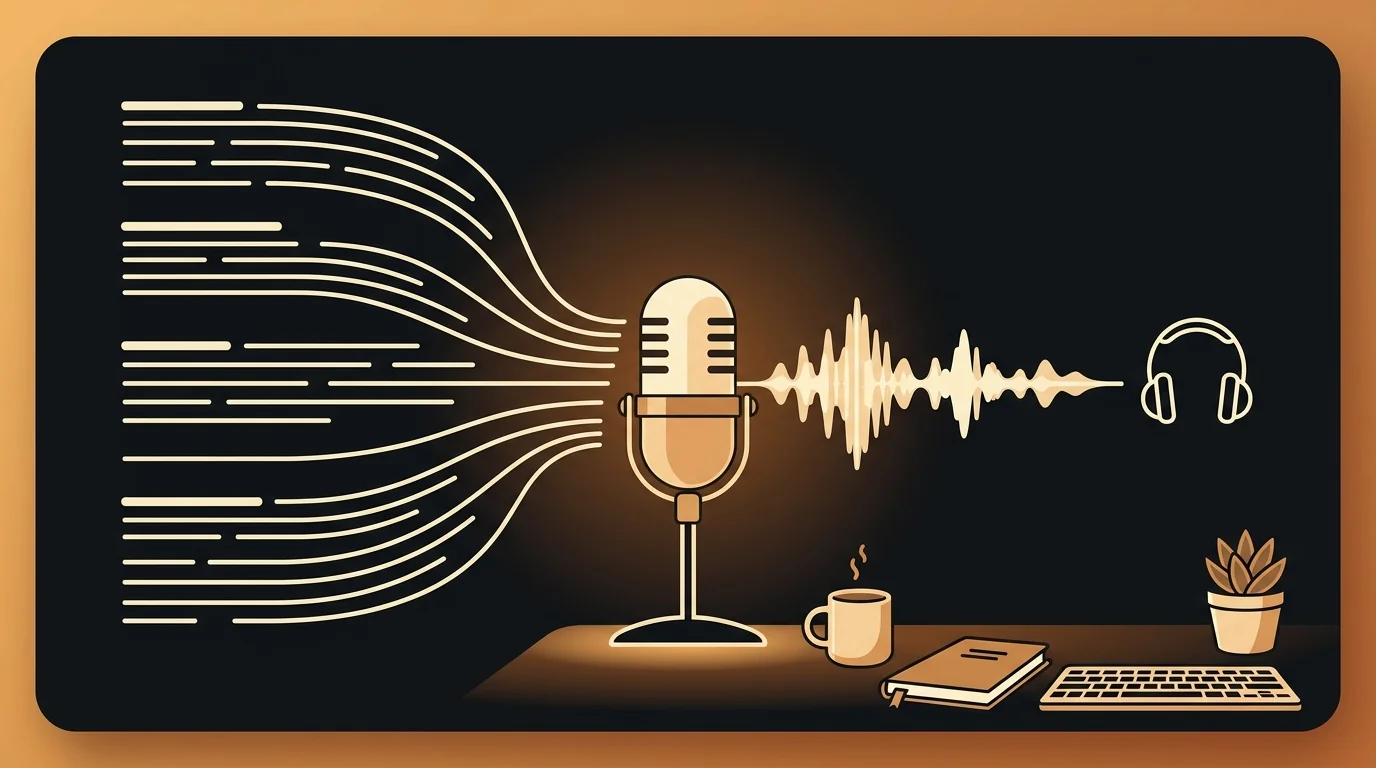
Audio-to-text conversion (also called audio transcription) turns a spoken audio recording into a written document. An AI model processes the audio signal, identifies speech, and outputs formatted text — with or without timestamps.
This is different from live speech-to-text dictation (where you speak and text appears in real time). Audio transcription works on existing recordings: files you already have on your device, downloaded from the internet, or exported from a platform.
The practical result: a 45-minute interview recording that would take 3 hours to transcribe manually takes about 3 minutes with AI.
Common audio-to-text use cases, and the formats they typically produce:
| Source | Common format | Output you need |
|---|---|---|
| Interview recording | MP3 or M4A | Full transcript with timestamps |
| Zoom/Teams meeting | MP4 | Timestamped transcript, speaker labels |
| iPhone Voice Memo | M4A | Quick text for notes |
| Podcast episode | MP3 | Transcript + summary for show notes |
| Voice recorder | MP3 or WAV | Verbatim transcript |
| Lecture recording | MP4 or MP3 | Searchable transcript for students |
Supported Audio Formats
Most audio transcription tools — including sipsip.ai's audio transcriber — support the common formats you'll encounter:
| Format | Common source |
|---|---|
| MP3 | Most recording apps, podcasts, voice recorders |
| M4A | iPhone Voice Memos, QuickTime audio recordings |
| WAV | Professional audio equipment, Logic Pro, Audacity exports |
| FLAC | Lossless audio, archival recordings |
| OGG | Audacity, open-source recording tools |
| MP4 | Video recordings with audio — the audio track is extracted automatically |
If your file is in a different format, free converters like FFmpeg or Audacity can convert it to MP3 before uploading.
MP3 to Text: The Most Common Conversion
MP3 is the default format for most audio recorders, podcast platforms, and downloaded audio files. Converting MP3 to text with sipsip.ai takes three steps:
- Go to sipsip.ai/tools/audio-transcriber
- Upload your MP3 file
- Copy the transcript when it's ready (typically under 2 minutes for a 30-minute recording)
The process is identical for M4A, WAV, FLAC, and OGG. If your file is in a different format, FFmpeg converts to MP3 in one command: ffmpeg -i input.whatever output.mp3
For MP4 files (video recordings with audio): sipsip.ai extracts the audio track automatically. You don't need to strip the audio before uploading.
Step-by-Step: Convert Audio to Text with Sipsip
Step 1: Have your audio file ready
Locate the file on your device. Common locations:
- iPhone: Voice Memos → Share → Save to Files → M4A file
- Android: your recorder app's local folder, usually in
/Recordings/ - Zoom / Teams: your platform's recording folder (MP4 or M4A)
- Downloaded podcast: your podcast app's download folder (MP3)
Step 2: Upload to the audio transcriber
Go to sipsip.ai/tools/audio-transcriber. Drag and drop your file or click to browse. No account required for your first transcript.
Step 3: Wait for transcription
Processing time scales with file length:
- 5-minute voice memo → ~10 seconds
- 30-minute interview → ~1–2 minutes
- 60-minute lecture → ~3–5 minutes
You don't need to stay on the page.
Step 4: Copy or download the transcript
The transcript appears with optional timestamps. Copy the text, or download as a plain text file. Toggle timestamps off for cleaner copy-paste into a document.
When You Need More Than a Transcript
The free audio transcriber gives you clean text. When you need to also understand what was said without reading every word — especially for long recordings — the full Sipsip Transcriber adds:
- AI summary: 3–5 key insights distilled from the recording
- Key points: the most important decisions, statements, or findings
- Standout quote: the single most quotable line
- Full transcript: same as the free tool, with toggle timestamps
This matters most for recordings you're using as source material — interviews, lectures, client calls, podcast episodes you want to repurpose.
Tips for Better Transcription Quality
Before recording:
- Use a directional microphone or a dedicated recorder app rather than a phone's built-in mic
- Record in a quiet environment — background noise is the biggest accuracy killer
- Speak clearly and at a moderate pace (not slower than natural — that actually hurts rhythm)
If your recording is already done:
- Trim long silences before uploading
- If there are multiple speakers, note who speaks when — the transcript won't separate speakers automatically, but you can use the timestamps to add attribution
For technical content:
- The transcript will capture technical terms accurately if they're pronounced clearly
- Whisper (the model sipsip.ai uses) handles medical, legal, engineering, and technical vocabulary well compared to older ASR models
If your recording has multiple speakers: Sipsip's transcription doesn't automatically label who said what. Use the timestamps in the output to note speaker changes. If you're transcribing regularly and need automatic speaker diarization, Otter.ai is the alternative built specifically for multi-speaker conversations.
For technical content (legal, medical, engineering): Whisper handles specialized vocabulary better than older models. For unusually dense technical content — medical terminology, legal citation language, engineering formulas — do a review pass specifically for proper nouns and technical terms.
File size and upload: Most recordings compress to very manageable file sizes. A 60-minute MP3 interview recorded at standard quality is typically 50–80MB. For multi-hour files, splitting at natural breaks before uploading speeds processing and makes the transcript easier to navigate.
Common Use Cases for Audio to Text
Interview transcription Journalists, researchers, and UX teams convert recorded interviews to text before analysis. A 60-minute interview at Whisper accuracy (92–96%) typically produces 6,000–8,000 words of transcript. The workflow: record the interview as MP3 or M4A → upload to sipsip.ai → copy transcript into your analysis tool.
Lecture and course recordings Students upload lecture recordings and get a searchable, editable transcript they can annotate and reference. For teachers and course creators, the transcript becomes the basis for written supplementary materials without re-recording. See how teachers use lecture transcription.
Podcast production Podcast creators convert episode audio to text for show notes, blog posts, and social media clips. The full transcript also improves podcast SEO — Google can't index audio, but it indexes text. Sipsip's Transcriber generates the AI summary and key points alongside the transcript in one step.
Voice memos and field notes Researchers, journalists, and anyone who records ideas on their phone convert voice memos to text for permanent notes. iPhone Voice Memos export as M4A, which uploads directly. See how to transcribe voice memos for the iPhone-specific workflow.
Legal and compliance Law firms, compliance teams, and HR departments transcribe depositions, client calls, and recorded interviews. For sensitive recordings, local Whisper keeps everything on-device with no data transmitted to external servers.
Podcast listening Instead of listening to a 90-minute podcast episode, paste the RSS episode link (or upload the MP3) and read the summary and key points in 3 minutes. The full transcript is there if you need a specific quote.
Frequently asked questions

With a background spanning advertising and internet, I've launched 8+ apps and built 10+ products across mobile, web, and AI. Now I'm building a system that extracts signal from noise — turning fragmented information into clear, actionable decisions.