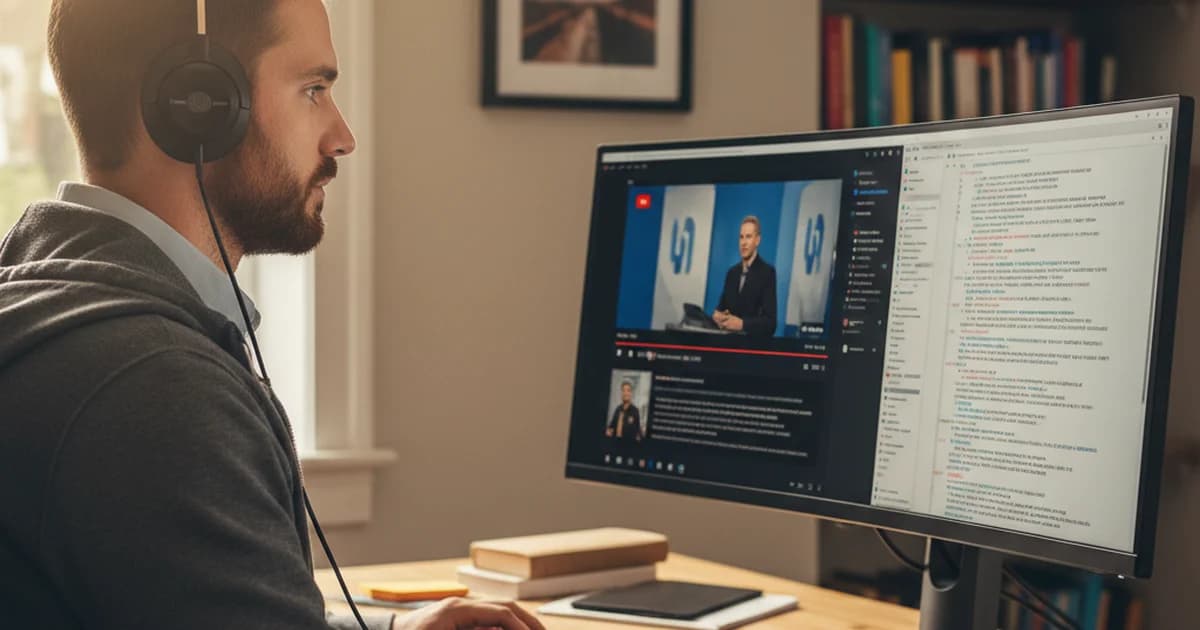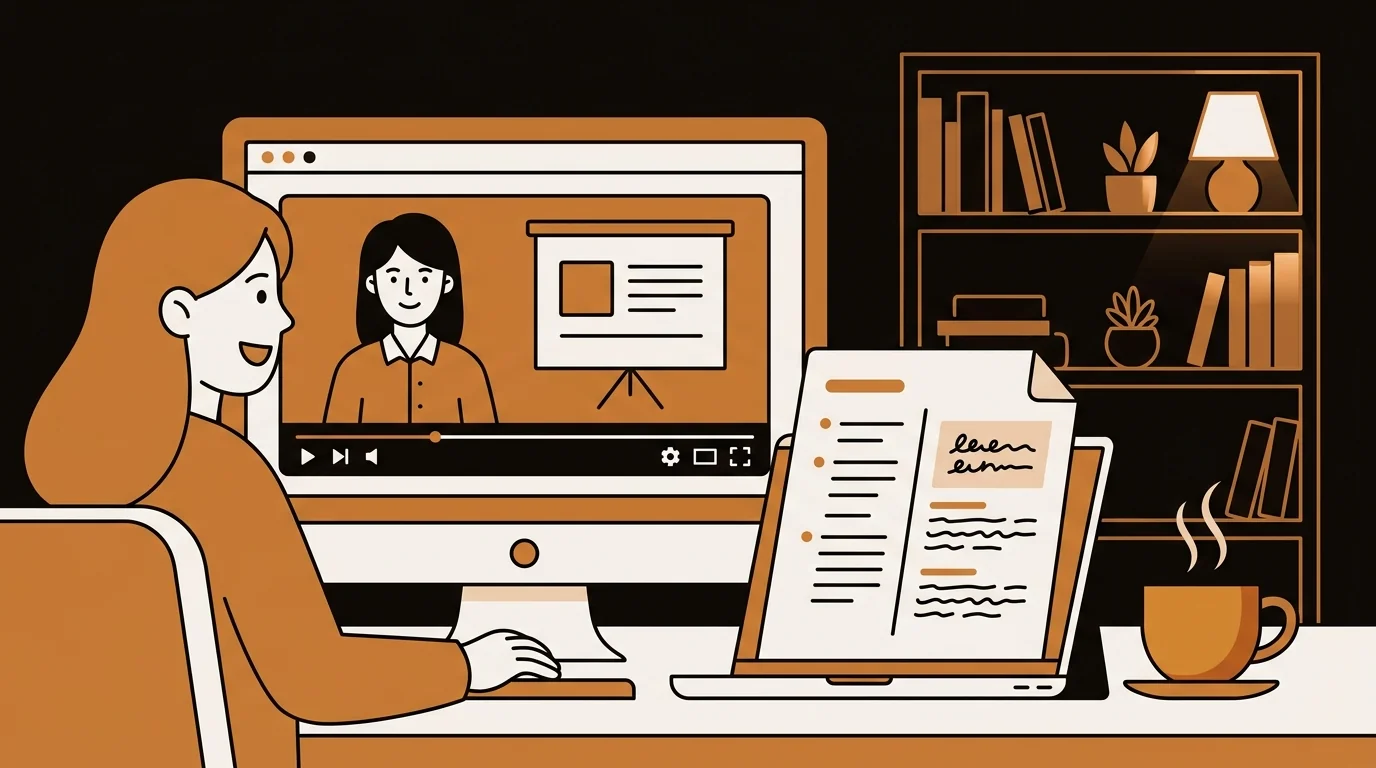
I create online courses and teach live workshops on digital marketing. Every session I record gets uploaded to a learning platform — but video alone isn't accessible to all learners, and it can't be searched or repurposed. A free video transcriber changed what I'm able to offer students without changing how I teach.
Teaching on Video and What Gets Lost
I record my lessons for two reasons: students who miss live sessions can watch the replay, and I build course libraries from the recordings. Video works well for demonstrations and explanations. It doesn't work well for everything else a learner needs.
You can't search a video. A student trying to find where I explained a specific concept has to scrub through a 45-minute recording based on rough memory of when I covered it. They usually don't — they either rewatch the whole thing or give up.
You also can't adapt video content easily. Taking a 40-minute video lesson and turning it into a reading summary, a quiz, or written supplementary material requires either re-recording or transcribing first. Transcribing manually is the bottleneck that killed most of my content repurposing plans.
The accessibility gap is just as real. About 15–20% of students have some form of learning difference — dyslexia, ADHD, auditory processing difficulties — where text is significantly more accessible than video. Some students are non-native English speakers who need to re-read explanations. Others simply learn better from text and find video passive and hard to control.
Providing a transcript isn't extra work — it's the same content in a different container. The work was already done when I recorded the lesson. Getting the transcript was the only missing step, and it was taking too long manually.
Video to Text: The Free Workflow
Sipsip.ai's free video transcriber accepts the video files I already produce. I record lessons as MP4 (my screen recorder's default format) and upload them directly. No audio extraction, no format conversion.
For a 45-minute lesson, the transcript is ready in about 5–7 minutes. The output:
- Full transcript — everything I said, as readable text
- AI summary — a concise overview of what the lesson covered
- Key points — the main concepts taught
That's the complete content layer for a lesson. Video for watching, transcript for searching, summary for orientation.
"Students can now search my lessons like a document. The transcript turned a video archive into a knowledge base."
— Elena Rossi
Step-by-Step: How I Transcribe a Lecture Video
Here's my exact workflow for a typical 45-minute lesson recording:
Step 1: Export the recording My screen recorder (OBS) saves automatically as MP4 to my desktop. For workshops I record on Zoom, I download the cloud recording from my Zoom dashboard as MP4.
Step 2: Upload to sipsip.ai Go to sipsip.ai/tools/video-transcriber. Drag and drop the MP4. No account required for the first transcription.
Step 3: Wait A 45-minute lesson takes 5–7 minutes. I move on to something else and come back.
Step 4: Review and copy I do a quick scan for any proper nouns or technical terms that got garbled. For a well-recorded lecture, this usually takes 2–3 minutes. Then I copy the transcript and paste it into my course platform alongside the video.
Total additional time per lesson: 10–15 minutes. Before this workflow, manual transcription of a 45-minute lesson took 2–3 hours. I've now transcribed my full back catalog of 60+ lessons.
What I Do With the Video Transcripts
Student transcripts. I post the transcript alongside each lesson recording on the course platform. Students with accessibility needs, non-native speakers who need to reread, and visual learners who prefer text all benefit. It also makes the course more discoverable — text content is indexed by search; video is not.
Searchable lesson archive. I now have a folder of lesson transcripts I can Ctrl+F through. When a student asks "where did you cover X?", I search my transcripts and give them a timestamp instead of rewatching the video myself.
Written content repurposing. The lesson transcript becomes the first draft of a written guide or blog post. I teach the concept on video, get the transcript, and edit it into written form. The same material becomes two formats with a fraction of the extra effort.
Course improvement. Reading back what I said — rather than watching myself say it — makes it easier to identify where my explanation was unclear, where I repeated myself, and where I assumed knowledge the students might not have. The text is easier to analyze than the video.
Quiz and assessment creation. I paste the transcript into an LLM (Claude or ChatGPT) with the prompt "generate 10 multiple-choice questions from this lesson." The questions are tied to the actual content I taught, not generic topic questions. This cuts assessment creation time from an hour to 10 minutes.
Searchable course index. I've built a simple spreadsheet with each lesson title, the timestamp of key concepts, and the first paragraph of the transcript. When students ask "where did you cover X?", I search the spreadsheet and give them a video timestamp. Before transcripts, I had to rewatch my own videos to answer these questions.
Try Free
Free Video Transcriber — Upload MP4 or MOV, Get Text Instantly
Getting Better Transcripts: Recording Tips
The transcript quality depends mostly on the recording quality, not the tool. For lecture-style content, a few simple practices make a noticeable difference:
Microphone placement. A USB desktop microphone or a lapel mic dramatically outperforms a laptop's built-in mic. I use a $60 USB condenser mic that I keep on my desk. The accuracy difference is significant — especially for technical terminology.
Room acoustics. Hard walls and floors create echo that hurts transcription accuracy. Recording in a room with carpet, curtains, or soft furniture reduces reverb. If you're in a bare office, a simple desk foam panel behind your monitor helps.
Consistent pacing. Speaking at a natural, consistent pace is better than speaking slowly. Whisper is trained on natural speech — artificially slow speech sometimes causes it to break up phrases incorrectly.
Avoid crosstalk. If you record live sessions with student Q&A, the transcription will be less accurate on the student questions (which are often distant from the mic). I tell students to wait for me to repeat their question before answering — which also benefits students who watch the replay.
File Formats From Different Recording Setups
I use three different recording setups depending on the lesson type:
MP4 (OBS, Loom, Zoom recordings) — my main format for screen-share lessons MOV (QuickTime on Mac) — for webcam-only or presentation recordings MP4 from phone — for in-person workshops I record on a tripod
All three upload and transcribe without any conversion step needed.
Languages and Accessibility
I teach primarily in English, but I occasionally deliver workshops in Italian for European clients. The transcription handles both languages. For bilingual sessions where I switch languages, the output is less clean but still usable.
For accessibility purposes, having a text transcript makes course content compliant with accessibility guidelines that many institutional clients require. This has become a selling point I didn't anticipate — the free transcription workflow now helps me win contracts with universities and corporate training departments that have accessibility requirements.
Frequently asked questions

I teach online and record every lecture as a video file. sipsip.ai's free video transcriber converts them to text — so my students get searchable transcripts and I get reusable content.