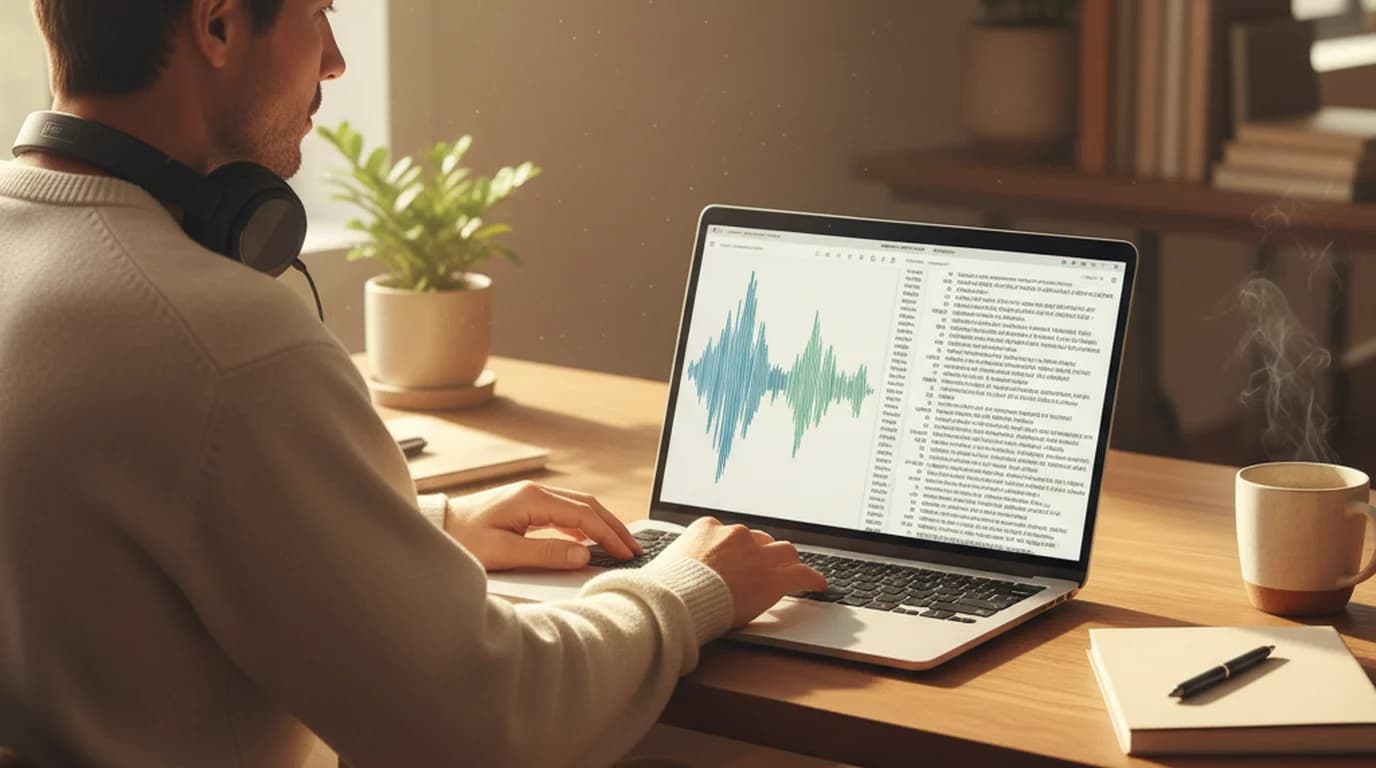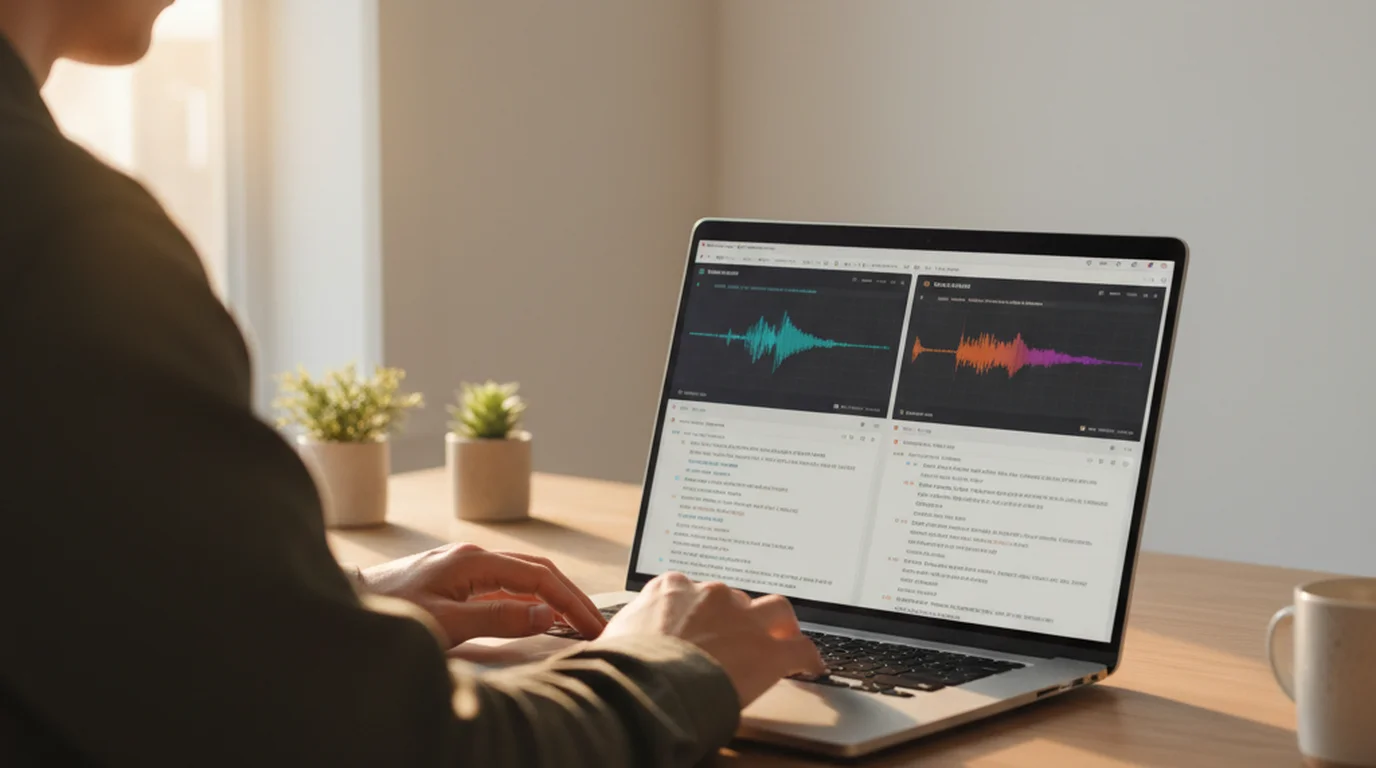
Microsoft Word has a transcription feature most users don't know exists. It works. It also has real limitations that make it the wrong tool for many professional transcription workflows. Here's an honest evaluation of what Word audio transcription does, where it falls short, and what to use instead when it's not enough.
Transcribe Your Audio for Free
Paste any MP3, WAV, or M4A file into sipsip.ai's free audio transcriber — full transcript in under 30 seconds, no sign-up required for first use.
Try Free Audio Transcriber →Microsoft Word's Transcribe Feature: What It Actually Is
Microsoft 365 (subscription only — not standalone Word) includes a Transcribe feature under Dictate → Transcribe in the toolbar. It does two things:
- Live recording: Records audio directly through your microphone and transcribes it in real time, inserting text as you speak
- File upload: Accepts pre-recorded audio (MP3, WAV, M4A, MP4) and transcribes the file, displaying the result in a side panel with speaker labels and timestamps
The output appears in the Transcribe panel rather than directly in the document. You can add individual quotes or the full transcript to the document by clicking arrows next to each section.
This feature was added in 2020 and has been improved significantly. In 2026, it's a usable option for occasional transcription — but the constraints are real.
What Word Transcription Does Well
Low friction for Office users. If you already live in Microsoft 365, the Transcribe feature is there without an additional subscription or tool change. No account to create, no new interface to learn — it's inside the application you already use.
Speaker labeling. Word identifies different speakers and labels them (Speaker 1, Speaker 2), which you can rename. For two-speaker meetings or interviews, this is accurate enough that most sections don't need manual correction.
Timestamps. Each section includes timestamps linked to the audio. You can click a timestamp to play back that moment in the recording, useful for verifying quotes before finalizing them in a document.
Integration with Word document. Because the transcript is generated inside Word, inserting selected quotes into your document is a one-click action. For users writing reports or articles based on interviews, this integration reduces friction.
Where Word Transcription Falls Short
300-minute monthly cap. The biggest practical limitation: 300 minutes (5 hours) per month, with no option to purchase more. For anyone transcribing regular meeting recordings or multiple interviews weekly, this limit is hit mid-month. There's no warning until you attempt a transcription and are blocked until the next billing period.
Lower accuracy than dedicated tools. Microsoft's transcription engine doesn't match the word error rates of Whisper large-v3 or Deepgram Nova-2 on comparable recordings. In our testing across a set of real-world meeting recordings, Word produced 10–15% error rates on clean audio versus 3–6% for dedicated tools. On technical vocabulary, the gap widened further.
According to an independent benchmark study by the Johns Hopkins Center for Language and Speech Processing, Microsoft's speech recognition achieved word error rates 30–40% higher than Whisper and Deepgram models on the same real-world audio sets — a gap that persists in current Word transcription.
English and limited language support. Word's free Transcribe feature performs well on English; non-English accuracy is inconsistent and language coverage is narrower than Whisper-based tools that support 50+ languages reliably.
No summary or key points. Word transcription produces a transcript — that's it. There's no automated summary, no key points extraction, no structured output. You receive a timestamped transcript and format the rest yourself.
File size limit. 300MB per file. A 90-minute 1080p video recording typically exceeds this, requiring compression before upload.
Word Transcription vs. Dedicated AI Tools
| Feature | Word Transcription | sipsip.ai |
|---|---|---|
| Monthly limit | 300 min | 20 files (free) / pay-per-use |
| Accuracy (clean audio) | ~85–90% | 94–97% |
| Speaker diarization | ✓ | ✓ |
| Timestamps | ✓ | ✓ |
| AI summary | — | ✓ |
| Key points | — | ✓ |
| Language support | Limited | 50+ languages |
| PDF / YouTube input | — | ✓ |
| Requires Microsoft 365 | ✓ Required | — |
Related: Audio Transcription Complete Guide — Accuracy, Formats, and Use Cases
When Word Transcription Is the Right Choice
Word transcription makes sense when:
- You're an existing Microsoft 365 user doing occasional transcription (well under 300 minutes/month)
- You're transcribing short, clean recordings where 85–90% accuracy is acceptable
- You need quotes inserted directly into a Word document with minimal workflow switching
- Your recordings are in English and your team is standardized on Office
When to Use a Dedicated Transcription Tool Instead
Use a dedicated tool like sipsip.ai's Transcriber when:
- You transcribe more than 300 minutes per month (the Word cap)
- You need higher accuracy on technical content, accented speech, or multi-speaker audio
- You need an automated summary or key points, not just a raw transcript
- You process YouTube videos, PDFs, or podcast episodes alongside your recordings
- You're transcribing non-English audio or mixed-language content
For users who hit Word's monthly limit or who need better accuracy on professional content, sipsip.ai's free tier provides 30 credits, about an hour of audio at 2 minutes per credit, and paid plans add 100 to 1,000 credits a month for longer recordings.
The Workflow for Power Users: Both Tools Together
Some Microsoft 365 users find the best workflow uses Word for quick in-document transcription on short, casual recordings (voicemails, quick voice notes) and a dedicated tool for longer or higher-stakes content. The two aren't mutually exclusive — Word handles the lightweight use case without friction, dedicated tools handle everything else.
For teams standardized on Microsoft 365 who also need professional transcription quality, sipsip.ai integrates with any document workflow — the transcript exports as plain text or Markdown and pastes into any Word document.
Explore More
Related Article
Audio Transcription Complete Guide — Formats, Accuracy, Use Cases
Comparison
Best Free Audio Transcribers in 2026 — 6 Tools Tested and Ranked
Related Article
How to Transcribe Audio Recordings to Text (Step-by-Step)
Frequently asked questions

Across 8+ years, I've built full-stack and platform systems using TypeScript, Node, React, Java, AWS, and Azure, applying AI to practical problems and turning ambitious ideas into shipped products.