I run product at a B2B SaaS company. Fifteen to twenty customer discovery calls a month is a normal pace — more during research sprints. Every call is recorded as an MP4. For two years, those files sat in a folder until I had time to re-watch them. Transcribing them changed that.
An MP4 file contains an audio track. An AI transcription tool extracts that audio and converts it to text using speech recognition. The result is a searchable, readable document from any video recording — a Zoom call, a user interview, a recorded product demo, a conference session replay.
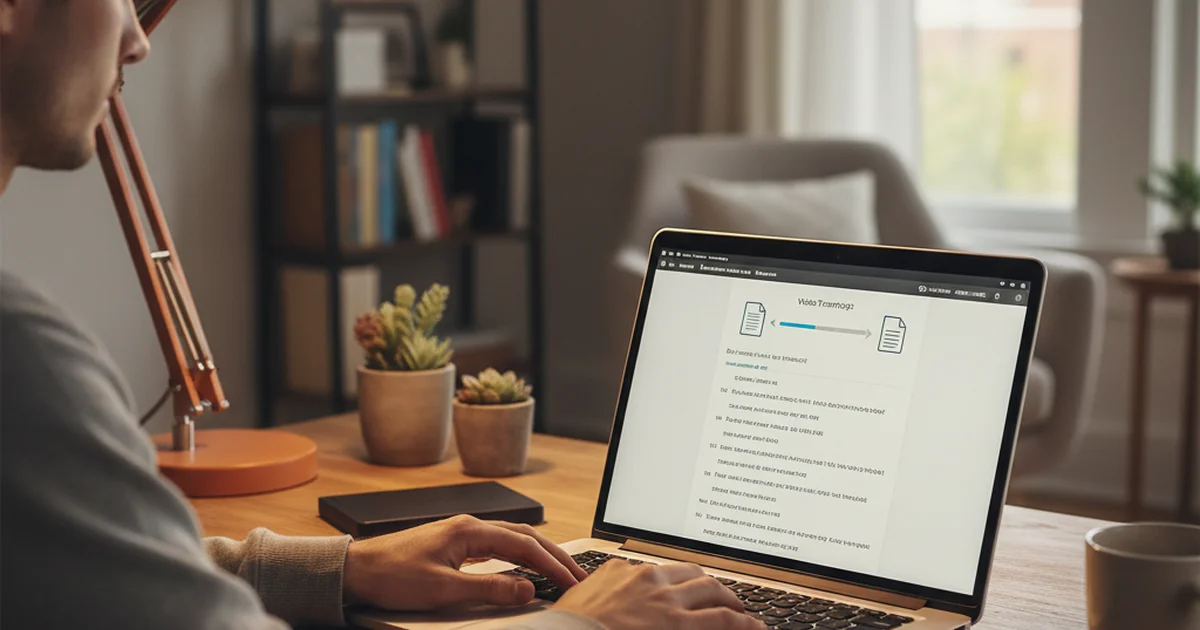
To convert an MP4 to a transcript: upload the file to sipsip.ai's Transcriber, click run, and receive a timestamped transcript with speaker labels and an AI summary within 2 minutes for most recordings. No account is required for first use.
Why MP4 Transcripts Matter for Research and Product Work
Video is the wrong format for systematic analysis. You can't skim a recording the way you can skim a document. You can't search an MP4 for the moment a customer mentioned a specific feature. You can't copy a quote from a video file.
Transcripts fix all three problems. A 45-minute customer discovery call becomes a 5,000-word document you can search in seconds, annotate in your notes app, and quote directly in a research report.
In my product workflow, customer interviews go directly from Zoom to transcript. I'm not re-watching recordings — I'm reading them, searching them, and pulling exact quotes into product briefs. The time saving versus watching video playback is roughly 4:1 for the same information density.
The same workflow applies to: investor pitch recordings, sales call reviews, recorded training sessions, conference talk replays, and any video content where the substance is spoken rather than visual.
How to Convert MP4 to Transcript with sipsip.ai
Step 1: Get your MP4 file. For Zoom recordings, find the file in your local Zoom folder or download from the Zoom cloud recordings panel. Google Meet saves recordings to Google Drive. Most video conferencing tools export standard MP4 or MOV files — both work.
Step 2: Upload to sipsip.ai. Open sipsip.ai's Transcriber and either drag the file onto the upload zone or click to browse. Files up to 500MB are supported on the paid plan; smaller files process on the free tier.
Step 3: Select your language. sipsip.ai supports 50+ languages. The model auto-detects language, but selecting manually improves accuracy for non-English content or mixed-language recordings.
Step 4: Click Transcribe and wait. Processing time is roughly 1 minute per 10 minutes of audio for standard recordings. A 45-minute call takes approximately 4–5 minutes to transcribe.
Step 5: Review the output. sipsip.ai returns three documents: the full timestamped transcript (with speaker labels where the model identifies distinct voices), an AI summary (2–4 sentences capturing the recording's main points), and key points (3–5 bullets of the most important claims or decisions).
According to Deepgram's 2025 Voice AI Report, nova-3 achieves under 8% word error rate on business meeting audio — the category most MP4 recordings from Zoom and similar tools fall into. In our internal testing at sipsip.ai with recordings from standard video conferencing setups, accuracy consistently reaches 93–96% for clear audio with one or two speakers.
Getting Better Transcript Accuracy from MP4 Files
Audio quality is the primary accuracy driver. A few practices that make a consistent difference:
Record with the right microphone. Built-in laptop microphones produce lower-quality audio than USB microphones or headset microphones. A $30 headset outperforms a $2,000 laptop for transcription purposes. If you're regularly transcribing customer calls, ask participants to use headphones rather than laptop speakers.
Check for echo cancellation. Video conferencing tools like Zoom have echo cancellation settings — confirm these are enabled before recording. Uncancelled echo doubles the speech signal and degrades transcription accuracy.
One speaker per channel where possible. Speaker diarization (identifying who said what) works best when voices are clearly distinct. For interviews with just two participants, accuracy is typically 90%+. For large multi-speaker recordings (5+ participants), diarization accuracy drops for speakers with similar voice characteristics.
Split very long recordings. Files over 2 hours benefit from being split into segments before transcription. Processing speed improves, and the output is easier to navigate as separate documents per meeting section.
From MP4 Transcript to Searchable Research Archive
A single transcript is useful. Dozens of transcripts, organized and searchable, change how a team learns from recorded conversations.
sipsip.ai's Mindverse feature creates a knowledge base from your transcriptions — transcripts, summaries, and key points from multiple recordings become a unified corpus you can search across or query with AI. For product teams running systematic customer research, this converts what was formerly a folder of unwatched video files into an active research database.
The video transcription workflow guide covers the broader process of structuring recorded research systematically — from recording setup through transcript organization.
Liam Carter is a senior product manager at a B2B SaaS company. He runs 15–20 customer discovery calls per month and uses sipsip.ai to transcribe and organize customer interview recordings.
Frequently asked questions

I run product at a B2B SaaS company. Fifteen to twenty customer discovery calls a month is a normal pace — more during research sprints. Every call is recorded as an MP4.