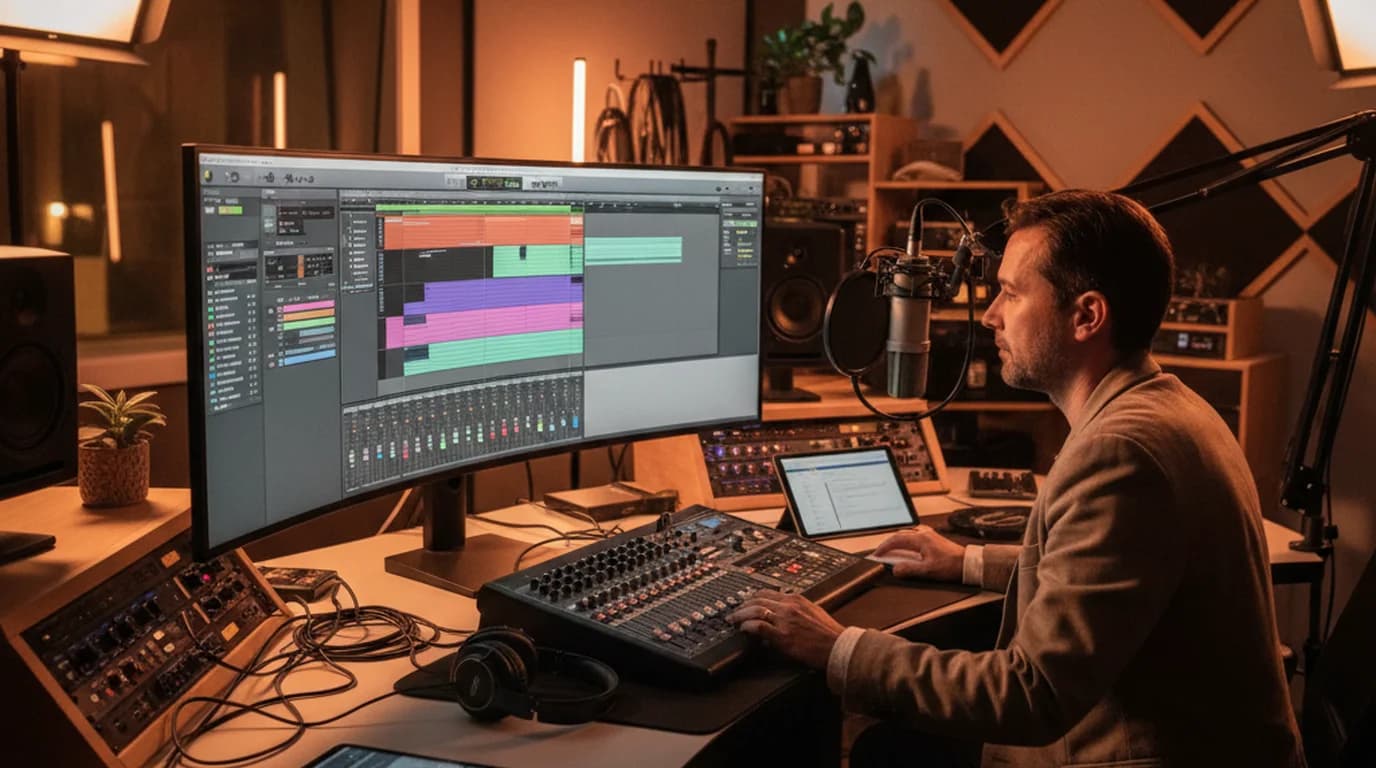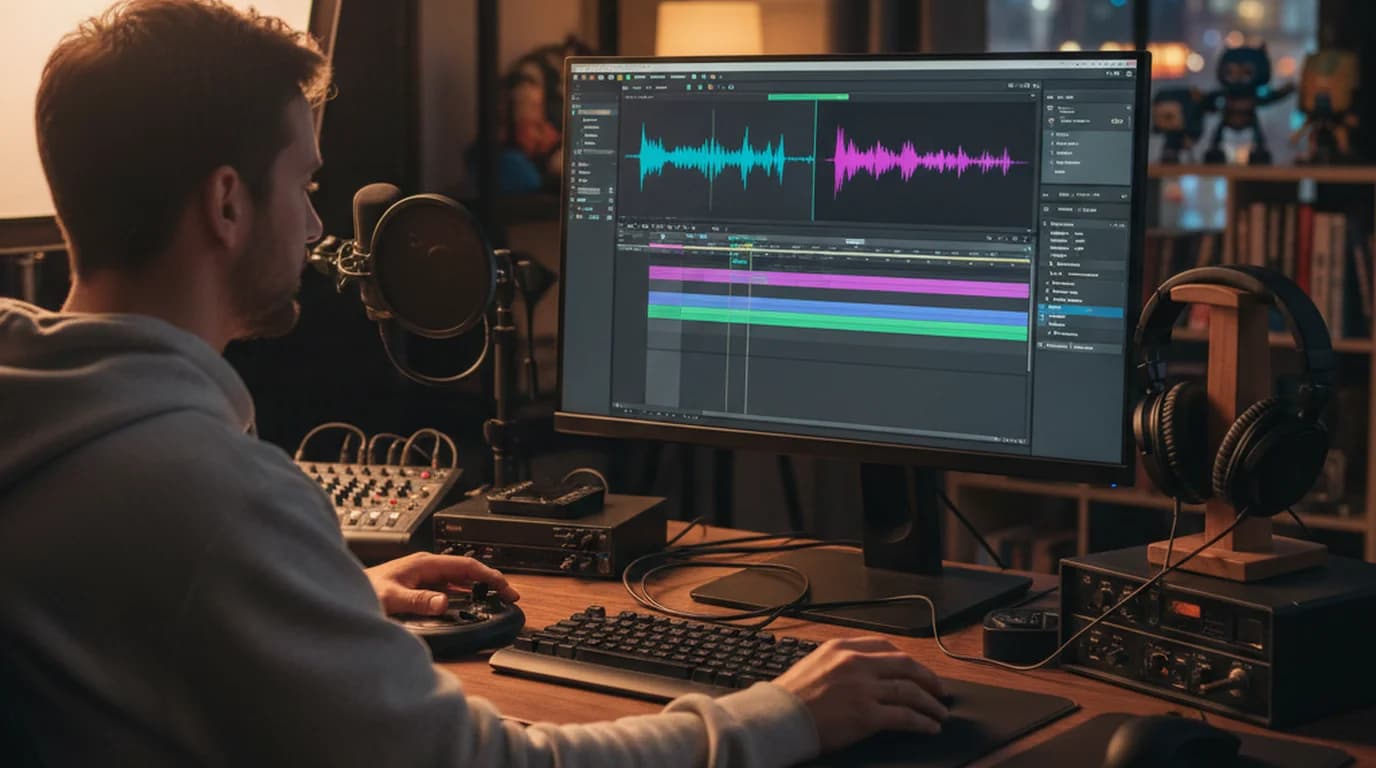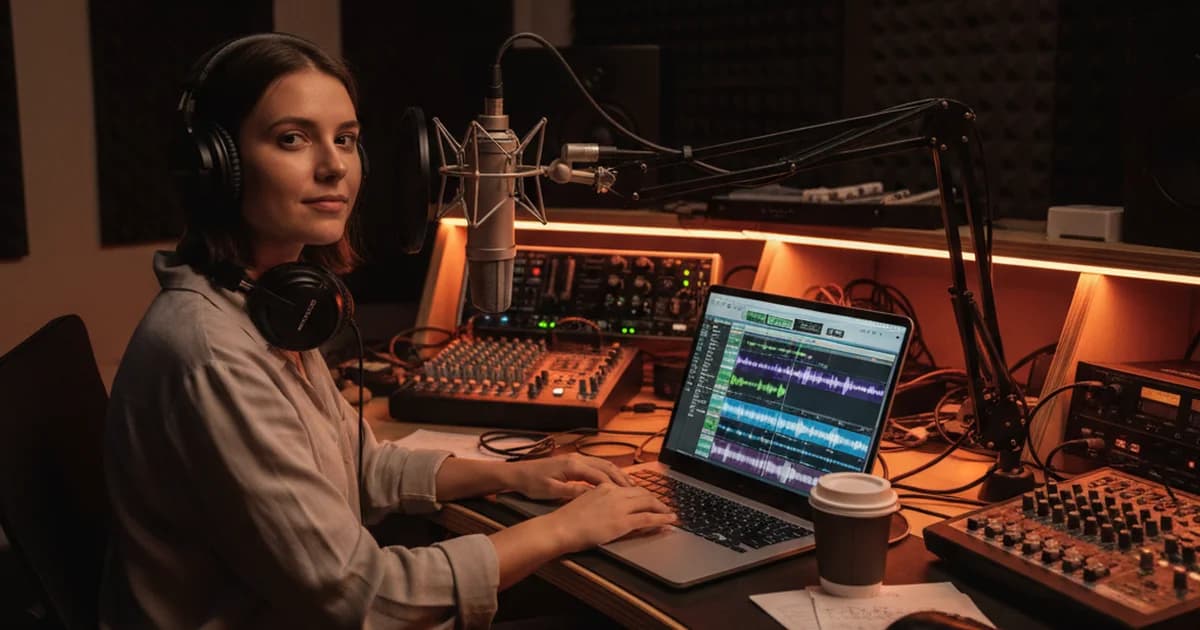
In podcast production, I work with WAV files constantly. Studio recordings, voice memo exports, interview files from digital recorders — they all come in as WAV. The first decision is always the same: convert to MP3 for delivery, or work with the original? I've run this workflow hundreds of times across different tools.
Converting WAV to MP3 reduces file size by 85–90% with no audible quality loss for voice and most music content. The process is audio recompression: WAV stores uncompressed PCM audio, and the converter re-encodes it using MP3's perceptual audio coding algorithm, which removes frequency information the human ear can't distinguish.
To convert WAV to MP3 free: FFmpeg is the most reliable option — ffmpeg -i input.wav -q:a 0 output.mp3 converts at maximum quality. For a no-install browser option, CloudConvert handles files up to 1GB free. For transcription, upload your WAV directly to sipsip.ai's audio transcriber — no MP3 conversion needed.
Why Convert WAV to MP3?
WAV files use uncompressed PCM encoding, which preserves every audio sample exactly. That's ideal for editing and archiving, but the file sizes are impractical for most other uses.
A typical WAV recording runs 10MB per minute at 44.1kHz/16-bit stereo. A 45-minute podcast interview would be a 450MB WAV file. The same recording as a 192kbps MP3 is roughly 65MB — about 7x smaller.
The practical reasons to convert WAV to MP3:
- Podcast distribution: Most hosting platforms (Spotify for Podcasters, Buzzsprout, Libsyn) accept MP3 and impose file size limits. A 2-hour WAV would exceed those limits.
- Sharing via email or cloud storage: WAV files are too large to send directly. MP3 makes sharing feasible.
- Uploading to transcription tools: Some online transcription services have file size limits that WAV recordings exceed. MP3 gets under those limits.
- Storage: 600MB for a one-hour WAV vs. 85MB for the same recording as MP3 — the difference accumulates quickly across a back catalogue.
Method 1: FFmpeg (Free, All Platforms, No File Size Limit)
FFmpeg is the standard command-line tool for audio conversion. It handles every audio and video format, runs on Mac, Windows, and Linux, and has no file size limit. It's free and open source.
Install FFmpeg:
- Mac:
brew install ffmpeg - Windows: download from ffmpeg.org, extract, add to system PATH
- Linux:
sudo apt install ffmpegorsudo yum install ffmpeg
Basic WAV to MP3 conversion:
ffmpeg -i input.wav -q:a 0 output.mp3
-q:a 0 uses variable bitrate at maximum quality (equivalent to ~245kbps average). For a fixed bitrate:
ffmpeg -i input.wav -b:a 192k output.mp3
Batch convert an entire folder:
for f in *.wav; do ffmpeg -i "$f" -q:a 0 "${f%.wav}.mp3"; done
FFmpeg processes audio at 50–100x real-time speed on modern hardware — a 60-minute WAV converts in under 90 seconds. In my production workflow, I use the batch command to convert an entire session's recordings at once.
Method 2: Audacity (Free GUI, All Platforms)
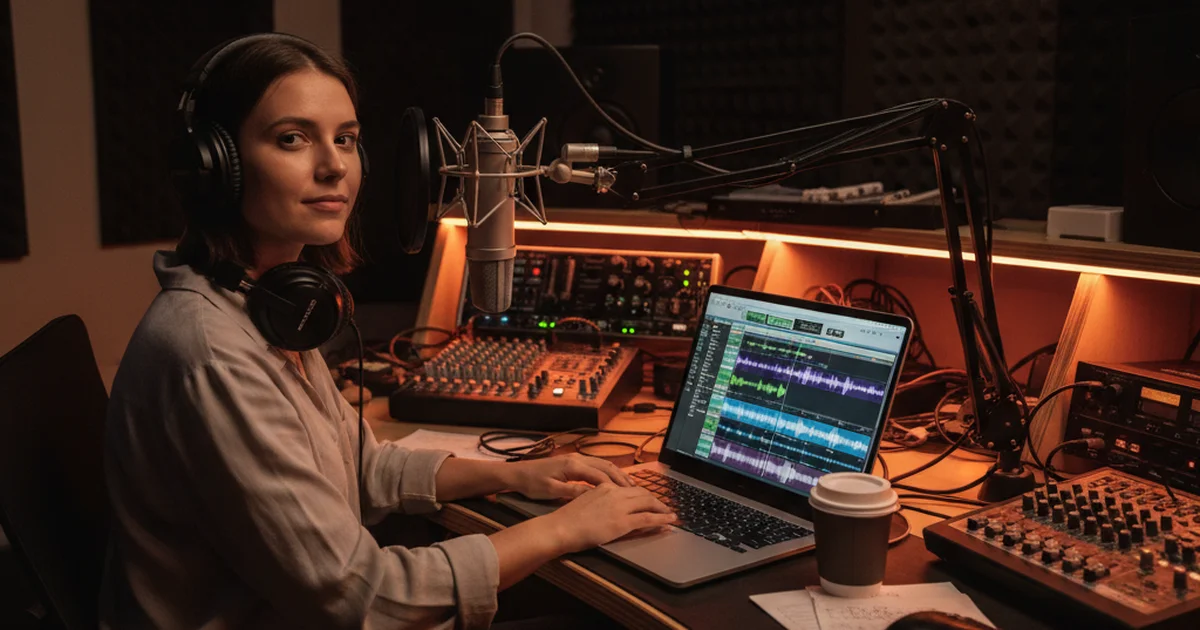
Audacity is a free, open-source audio editor that handles WAV to MP3 export natively. It's the best option if you need to edit the audio before converting.
Steps to convert WAV to MP3 in Audacity:
- Open Audacity and go to File → Open, select your WAV file
- (Optional) Make any edits — trim silence, normalize volume, reduce noise
- Go to File → Export → Export as MP3
- In the export dialog, set the quality (128kbps for voice, 192kbps for music)
- Click Save
On first MP3 export, Audacity will ask you to locate the LAME MP3 encoder. On recent versions of Audacity (3.x and later), LAME is bundled — you won't need to download it separately.
When to use Audacity over FFmpeg: Audacity is the better choice when the WAV file needs editing before conversion. If you're converting clean, unedited files, FFmpeg is faster.
Method 3: VLC Media Player (Free, No Install Needed on Mac)
VLC includes a built-in conversion tool that most users don't know about. It's useful when you already have VLC installed and want to avoid the command line.
Steps to convert WAV to MP3 in VLC:
- Open VLC → click Media in the menu bar
- Select Convert/Save (Ctrl+R on Windows, Command+R on Mac)
- Click Add and select your WAV file, then click Convert/Save
- In the Profile dropdown, select Audio — MP3
- Set the output file destination (choose a name ending in .mp3)
- Click Start
VLC uses FFmpeg internally for its conversion engine, so output quality is equivalent to running FFmpeg directly. The conversion speed is similar. VLC works well for occasional single-file conversions.
Method 4: CloudConvert (Browser-Based, No Software Install)
CloudConvert is a browser-based file converter that handles WAV to MP3 without installing any software. The free tier allows 25 conversions per day with files up to 1GB.
- Go to cloudconvert.com/wav-to-mp3
- Click Select File and upload your WAV file (or drag and drop)
- Adjust output settings: bitrate (128, 192, or 320kbps), sample rate, channels
- Click Convert and wait for processing
- Click Download when the conversion is complete
CloudConvert processes files on their servers, so conversion speed depends on your upload bandwidth. For large files — multi-hour studio recordings — local tools (FFmpeg or Audacity) are faster because you avoid the upload time.
According to CloudConvert's published benchmarks, their servers process audio at roughly 20x real-time speed after the upload completes. For a 30-minute WAV file on a 100Mbps connection, expect 3–4 minutes total including upload.
Quality Settings: Which Bitrate to Use
MP3 bitrate determines the balance between file size and audio quality:
| Bitrate | File Size (per minute) | Best For |
|---|---|---|
| 64kbps mono | ~0.5MB | Voice-only podcasts, audiobooks |
| 128kbps stereo | ~1MB | Standard podcast delivery |
| 192kbps stereo | ~1.5MB | Music, high-quality voice |
| 320kbps stereo | ~2.4MB | Maximum MP3 quality, audiophile use |
For podcast and interview content — which is most WAV-to-MP3 conversion — 128kbps mono or 192kbps stereo covers the full range of what listeners can hear. The quality loss from 44.1kHz/16-bit WAV to 192kbps MP3 is inaudible for speech at normal listening volumes.
A 2023 listening test study published by Hydrogenaudio found that trained listeners could not reliably distinguish between WAV and MP3 at 192kbps for speech content in blind A/B tests. For music with complex high-frequency content, the threshold was higher — around 256–320kbps.
One rule I follow in production: always keep the WAV originals. Convert to MP3 for delivery, but archive the WAV master. If you ever need to re-edit or reprocess, WAV preserves the full quality. Re-encoding from MP3 compounds the quality loss from the first compression pass.
When to Skip WAV-to-MP3 Conversion Entirely
If your goal is transcription, you don't need to convert your WAV file to MP3 first. sipsip.ai's audio transcriber accepts WAV files natively — upload the original and get a timestamped transcript directly.
This eliminates the convert-then-upload workflow:
- With conversion: convert WAV → upload MP3 → transcribe → get transcript
- Without conversion: upload WAV → transcribe → get transcript
For a 90-minute studio interview session, skipping conversion saves 3–5 minutes of processing time plus the storage space for a duplicate MP3 file you don't actually need.
For podcast creators who want to share audio with listeners or upload to a hosting platform, MP3 conversion is still necessary — podcast hosts require MP3 or M4A. For transcription-only use cases, it's an unnecessary step.
If you're transcribing audio from a video file, the same applies — check out the MP4 to MP3 guide for video-specific extraction methods, or upload the video file directly without extracting audio first.
For podcast creators working on show notes, the free podcast transcription guide covers the full workflow from raw recording to published transcript.
WAV to MP3 vs. Other Format Options
MP3 isn't the only alternative to WAV. Two other formats are worth knowing:
M4A (AAC): Better compression efficiency than MP3 at equivalent quality. A 128kbps M4A sounds better than a 128kbps MP3. Supported everywhere MP3 is supported, except some legacy devices. FFmpeg command: ffmpeg -i input.wav -c:a aac -b:a 128k output.m4a
OGG Vorbis: Open-source format with better quality-to-size ratio than MP3. Not supported on Apple devices natively. Best for web applications where you control the player. FFmpeg command: ffmpeg -i input.wav -c:a libvorbis -q:a 4 output.ogg
For podcast publishing and general audio sharing, MP3 remains the most universally compatible format. M4A is a good alternative if you're primarily in Apple ecosystems. OGG is useful for web projects with specific technical requirements.
For audio you want to transcribe using a link rather than uploading a file, sipsip.ai's link to MP3 converter accepts direct audio URLs — paste the link and get a transcript without downloading or converting anything locally.
Conclusion
FFmpeg is the most capable free WAV-to-MP3 converter for reliability, speed, and output control — handle single files or batch convert an entire folder in one command. Audacity is the best GUI option when you need to edit before converting. VLC and CloudConvert cover the no-install use cases.
For transcription, skip conversion entirely: upload your WAV directly to sipsip.ai's audio transcriber and get a full text transcript without the extra conversion step.
Keep your WAV originals. Convert to MP3 for delivery. Work in the format that fits the task.
Maya Patel is a podcast producer and audio editor specializing in interview and documentary podcast post-production. She manages audio workflows for multiple shows and uses sipsip.ai to generate transcripts from studio WAV recordings at the start of every editing session.
Explore More
Audio Transcriber — Upload WAV or MP3
Upload any audio file and get a full AI-generated transcript in minutes. Supports WAV, MP3, M4A, and more.
MP4 to MP3: Extract Audio from Video Free
The same conversion workflow for video files — how to pull the MP3 audio track from any MP4 recording.
Link to MP3 Converter
Paste a URL to any audio or video file and get the audio — no download or conversion needed.
Free Podcast Transcription Guide
From raw MP3 or WAV recording to published transcript — the complete workflow for podcast creators.
Frequently asked questions

I'm a management consultant at a Big 4 firm. I consume large amounts of information quickly — earnings calls, industry conference recordings, client interview notes.