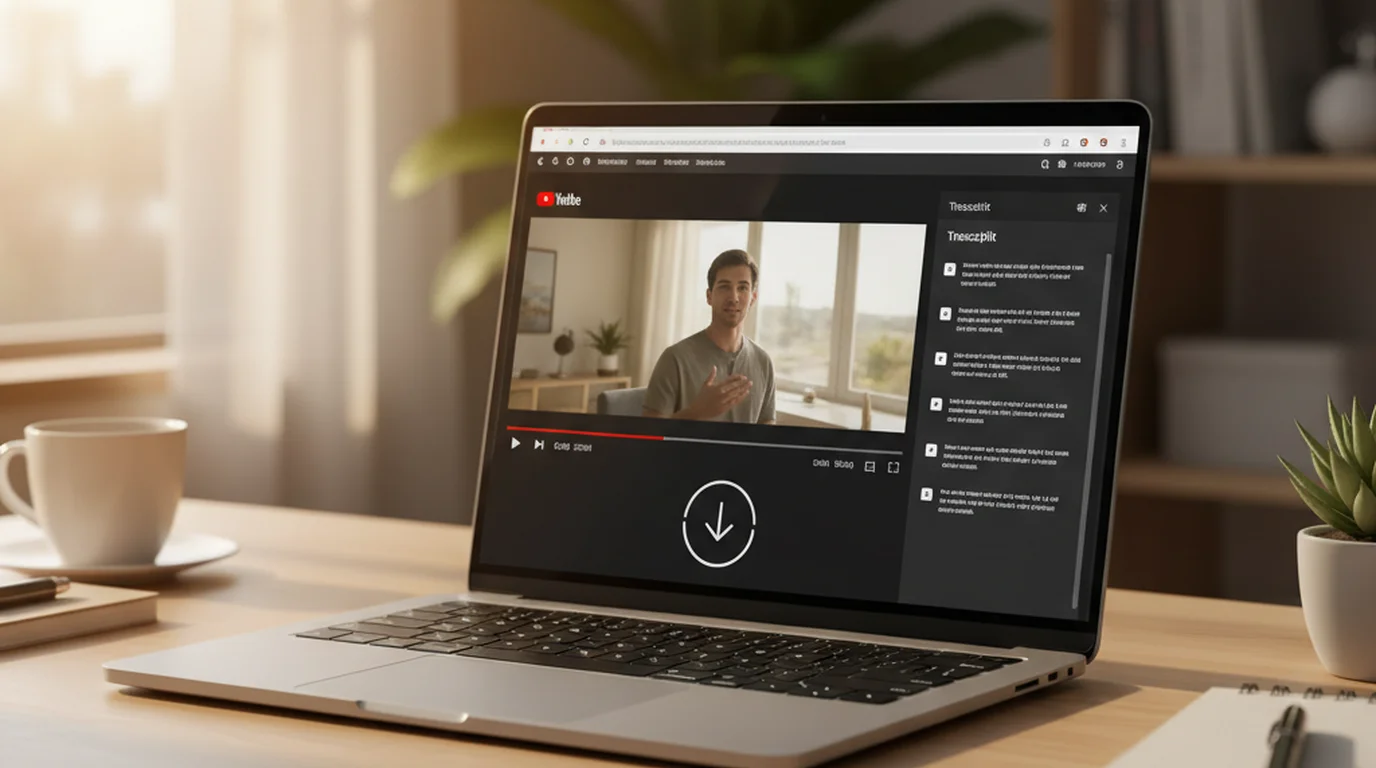
YouTube's transcript panel shows you the text. But "show" and "download" are different things. There's no native export button — to get a transcript file you can save, import into another tool, or archive, you need to go one step further. Here's how to download a YouTube transcript in the format you need.
Why the Built-In Panel Isn't Always Enough
YouTube's desktop transcript panel (three-dot menu → Show transcript) is useful for reading or copying small sections. For anything more — uploading captions to another video, importing into a research tool, archiving a transcript alongside a source you'll return to later — you need a downloadable file.
Common reasons people need a transcript file rather than copied text:
- Caption file upload: If you're uploading a video to another platform (your own website, LinkedIn, a conference recording system), you need an SRT or VTT file, not plain text
- Research archiving: A saved transcript file can be searched, annotated, and stored alongside your notes
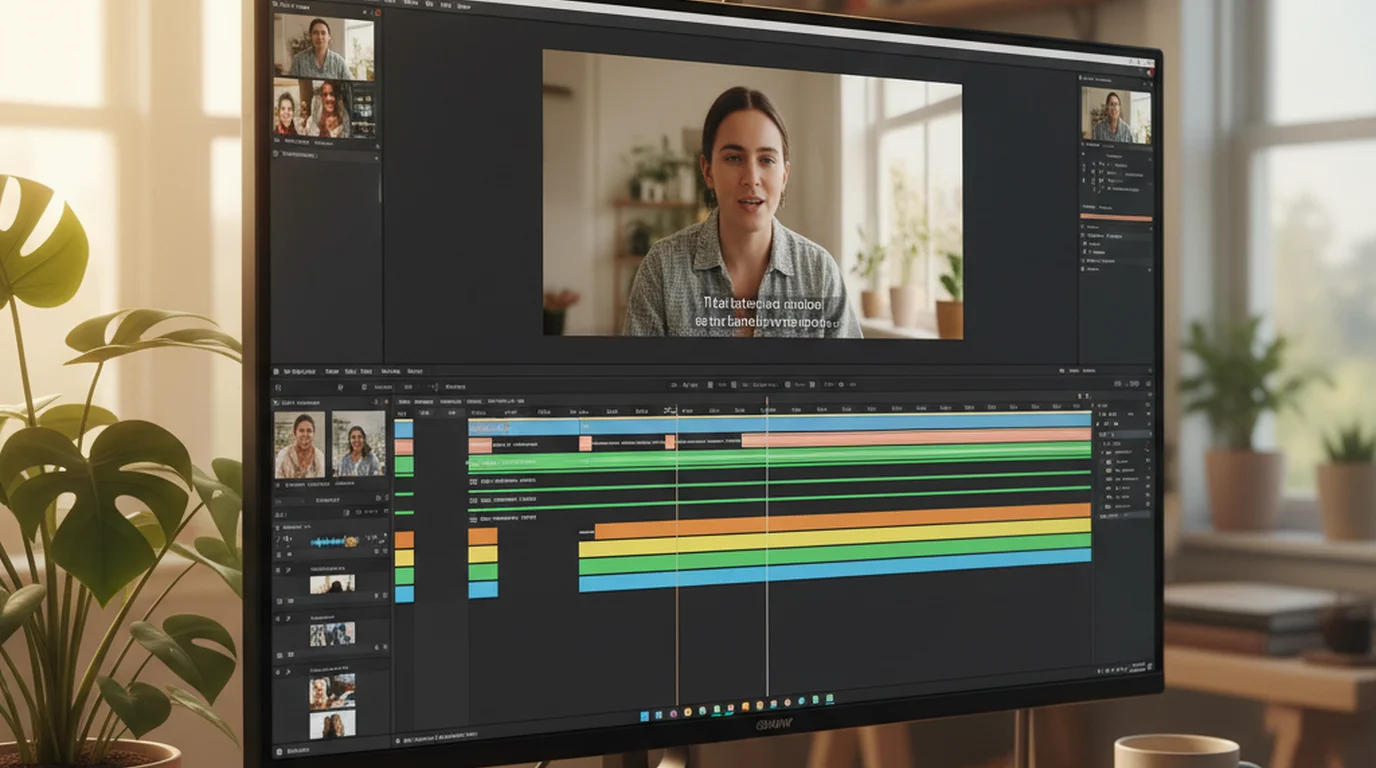
- Subtitle editing: Editing captions in a tool like Subtitle Edit requires a properly formatted SRT file
- Academic citation: A downloaded text file creates a durable record of source material that may be removed or edited
Method 1: Free YouTube Transcript Tool (No Signup, Plain Text)
The fastest way to get a downloadable transcript: paste the YouTube URL into sipsip.ai's free YouTube transcript tool.
Steps:
- Copy the YouTube video URL from your browser
- Go to sipsip.ai/tools/youtube-transcript
- Paste the URL and click "Get Transcript"
- The transcript appears with timestamps — click "Download" for a plain text file
What you get: Clean, readable plain text with optional timestamps. No formatting artifacts, no "Watch on YouTube" footers. Works on any captioned video without creating an account.
Format: TXT (plain text, timestamped or timestamp-free)
Best for: Research, note-taking, archives, or any use case where plain text is what you need.
Method 2: Browser Extension (SRT/VTT for Caption Files)
For subtitle-formatted files (SRT, VTT) that can be uploaded directly as captions:
YouTube Caption Downloader (browser extension, free): installs a download button directly on YouTube video pages. Choose your language and format (SRT, TXT, or VTT) and the file downloads immediately.
SaveSubs.com (web tool, free): paste a YouTube URL and download the captions in SRT, VTT, or plain text format. No account required.
Steps with SaveSubs:
- Open the YouTube video
- Copy the URL
- Go to SaveSubs.com and paste the URL
- Select your language and file format (SRT recommended for caption editing)
- Click Download
Format: SRT, VTT, plain text
Best for: Uploading captions to other platforms, editing in subtitle software, accessibility compliance work.
Method 3: sipsip.ai Full Transcript (AI-Enhanced, Any Language)
For a structured, formatted transcript with summary and key points — not just raw caption text:
- Go to sipsip.ai's Transcriber
- Paste the YouTube URL directly
- The AI fetches the audio and generates a clean formatted transcript
- Download as plain text or Markdown
What you get: Full transcript plus AI summary, key points, and speaker identification. Significantly better formatting than raw caption text — paragraph structure, corrected capitalization, no caption artifacts.
Format: Plain text, Markdown
Best for: Research, content repurposing, professional documentation, or transcribing videos without captions (sipsip.ai runs speech recognition on uncaptioned videos, which standard download methods can't do).
Method 4: YouTube Data API (Developers Only)
For programmatic access to captions across large numbers of videos, the YouTube Data API v3 provides caption track downloads with a free API key.
from youtube_transcript_api import YouTubeTranscriptApi

transcript = YouTubeTranscriptApi.get_transcript("VIDEO_ID")
text = "\n".join([t['text'] for t in transcript])
The youtube-transcript-api Python library handles authentication and formats the output as a list of timestamped segments you can write to any file format.
Best for: Batch transcript extraction, researchers building datasets, developers building tools.
Which Method for Which Use Case
| Use case | Best method | Output format |
|---|---|---|
| Quick archive or research | sipsip.ai free tool | TXT |
| Caption editing or upload | Browser extension / SaveSubs | SRT or VTT |
| Full transcript + AI summary | sipsip.ai Transcriber | Plain text / Markdown |
| Batch/programmatic | YouTube Data API | Custom |
| Video has no captions | sipsip.ai Transcriber | AI-generated transcript |
Key distinction: Methods 1 and 2 download the captions YouTube already has — they don't work on videos with no auto-captions. Method 3 (sipsip.ai's Transcriber) generates a transcript from the audio track using AI speech recognition — this works on any video with audible speech, regardless of whether captions exist.
What Format Do You Actually Need?
TXT (plain text): Best for reading, searching, and quoting. Works in any text editor, note-taking app, or document. The default for most research and archiving use cases.
SRT: Required for adding captions to videos on other platforms. Upload directly to your CMS, website video player, or LinkedIn. Subtitle Edit opens SRT files for manual correction.
VTT (WebVTT): The web standard for HTML5 video captions. Similar to SRT, used primarily for web-embedded video players.
Markdown: Best for pasting into tools that render markdown (Notion, Obsidian, documentation systems). sipsip.ai exports in Markdown format — includes headings, speaker labels as bold text, and proper paragraph breaks.
For most users who want a text file to read, search, or paste into notes: the sipsip.ai free transcript tool gives you a clean, usable TXT file in under a minute with no account needed.
Explore More
Related Article
How to Get a YouTube Transcript — 3 Free Methods
Comparison
7 Best YouTube Transcript Generators in 2026
Related Article
How Researchers Extract and Archive YouTube Video Content
Frequently asked questions

With a background spanning advertising and internet, I've launched 8+ apps and built 10+ products across mobile, web, and AI. Now I'm building a system that extracts signal from noise — turning fragmented information into clear, actionable decisions.