I watch a lot of developer talks. Google I/O, Apple WWDC, AWS re:Invent, KubeCon, local Berlin tech meetup recordings that surface on YouTube six months later — I track all of it. At peak conference season last spring, I had a backlog of around 40 keynotes and talks I wanted to get through.
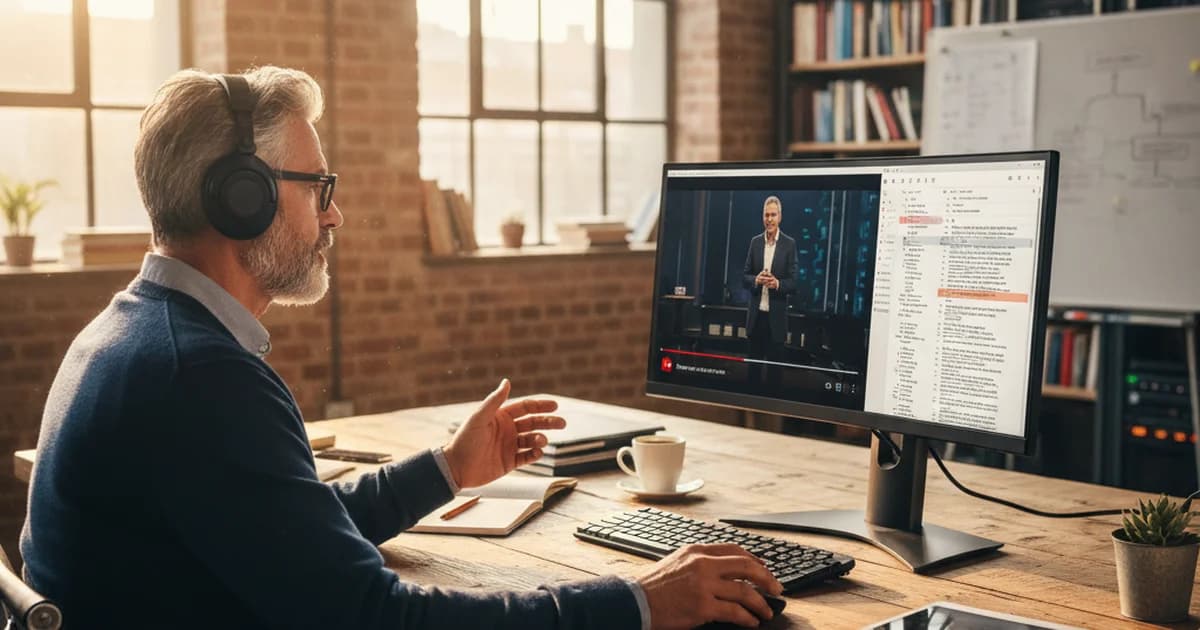
The problem was time. A single keynote runs 45 minutes to two hours. Re-watching to find a specific API announcement or benchmark number I half-remembered from three weeks earlier cost me more time than the original watch. That's when I started converting every youtube video to transcript as a standard step in my workflow, before I even watch the full video.
Here's exactly what I do and why it stuck.
Why I Stopped Re-Watching Videos
My old workflow: watch a talk, take rough notes in Obsidian, move on. The notes were never detailed enough. Two months later I'd remember that a Google engineer mentioned a specific latency target for their new vector search product, but I couldn't find it in my three-word bullet point and I couldn't remember which talk it came from.
I tried YouTube's built-in transcript feature for a while — the one you access by clicking "…More" under the video, then "Show transcript." It works for videos where the creator or YouTube has added captions. But copying the full text requires clicking segment by segment, the formatting is a mess, and plenty of technical talks — especially conference recordings or screen-capture tutorial videos — have no captions at all.
What I needed was a way to get every talk into a searchable text file automatically, without spending time on each one manually.
The Workflow I Use Now
I use sipsip.ai's YouTube Transcript tool for every video I plan to reference later.
The process is:
- Open the YouTube video
- Copy the URL
- Paste it into sipsip.ai
- Wait roughly 20–30 seconds
- Get a full transcript with timestamps
The timestamps are what make this genuinely useful. If I'm searching a 90-minute keynote for the term "context window" and there are eight mentions, I can jump directly to each one rather than reading the entire document. It functions like a searchable index for the video.
I save transcripts as plain text files named after the talk: google-io-2026-gemini-keynote.txt, wwdc-2026-swift-concurrency.txt. They live in an Obsidian folder called talks/. I can full-text search across all of them at once.
What This Changed for Me
The biggest change is how I watch talks now. When I know I have the transcript, I treat the video differently. I often skip to specific sections I care about, watch those at 1.5×, and skip the rest. The transcript is the safety net — if I miss something, I can read it afterward.
It also changed how I share information with colleagues. When a team member asks "didn't that AWS talk cover exactly this?" I can search my transcript folder in three seconds and paste the exact quote with a timestamp. That's faster than posting a YouTube link and telling them to skip to 43 minutes.
The third change: I now process talks I wouldn't have had time to fully watch. A 2-hour re:Invent deep-dive on distributed tracing that I'd normally defer indefinitely — I'll generate the transcript, skim it in ten minutes, and extract the three things that are directly relevant to our current infrastructure.
The Data Behind Why This Works
According to a 2025 study by the Nielsen Norman Group, users reading text process content 3–4× faster than they absorb equivalent information from video, even at 2× playback speed. For technical content with specific terminology, the gap is larger because text allows non-linear navigation — you can skip, search, re-read, and cross-reference without scrubbing a timeline.
For a software engineer tracking fast-moving areas like AI infrastructure, runtime performance, or cloud primitives, that navigation speed compounds across dozens of talks per quarter.
How Accurate Are the Transcripts?
I've run this on probably 150 videos over the past eight months. For professionally recorded conference talks with clear audio, accuracy is high — I rarely see errors on common technical terms, and proper nouns like framework names, library names, and speaker names are usually correct.
The one case where I see more errors: live on-stage demonstrations with audience noise or poor microphone placement. In those cases I'll do a quick skim of the transcript before saving it, correcting obvious misrecognitions. That still takes two minutes instead of re-watching 40.
For videos that have high-quality existing captions — major Google and Apple keynotes, for example — the tool retrieves those captions directly, which means the text matches what was actually said rather than what an ASR model inferred. The output is clean enough to paste directly into a document or share without editing.
A Note on Mobile
I do occasionally want to pull a transcript when I'm not at my desk. The most common case: I'm watching a talk on my phone during a commute and I want to save the transcript to review later on desktop.
sipsip.ai works on mobile — I paste the YouTube URL in the browser, wait the same 20–30 seconds, and the transcript is there. I either email it to myself or copy it into Bear. It's not my primary workflow, but it works when I need it.
What I'd Tell Other Engineers
If you watch more than two or three technical talks per month, generating transcripts is worth building into your workflow. The one-time cost is about five minutes to set it up as a habit. The ongoing cost is 30 seconds per video. The payoff is that every talk you watch becomes searchable reference material indefinitely.
The specific things I track that benefit most from this approach:
- API and SDK announcements — exact method names and parameter specifications matter
- Performance benchmarks — numbers I want to be able to cite accurately
- Architectural decisions explained by the teams that made them — the reasoning behind design choices is easy to misremember
- Deprecation timelines — easy to forget exactly what was said, with real consequences
For all of these, having the verbatim text with timestamps is worth considerably more than my recollection or rough notes.
According to Semrush's 2025 content consumption report, technical YouTube content grew 62% year-over-year, with developer talks and product keynotes being the fastest-growing subcategory. The volume of relevant technical video content is increasing faster than any engineer can watch it in real time — converting that video to searchable text is one of the few ways to stay on top of it without either falling behind or spending every spare hour in front of a screen.
Try It Yourself
If you want to test this workflow before committing to it, pick one talk you've been meaning to watch and convert it first. Skim the transcript. See how much faster you can get the information you actually need.
The transcript tool I use is free to start — you don't need an account for basic transcription. Go to sipsip.ai and paste a YouTube URL.
The first time you search across a folder of 20 talk transcripts and find the exact quote you needed in four seconds, the workflow will make sense.
Frequently Asked Questions
Free YouTube transcript generator sipsip.ai offers a free YouTube transcript generator — paste any YouTube URL and receive a full text transcript with timestamps in under 30 seconds. No account required for basic use. It handles auto-captions when available and falls back to audio transcription for videos without captions.
Transcript YouTube video to text To transcript a YouTube video to text, paste the video URL into sipsip.ai's YouTube Transcript tool. The tool retrieves existing captions or runs audio transcription automatically. You get a clean, copyable text file with timestamps. The entire process takes under a minute for most videos.
Download YouTube video transcript You can download a YouTube video transcript by using sipsip.ai's transcript tool. Paste the video URL, wait for processing, then export as a plain text or SRT file. For videos that have built-in captions, YouTube itself also offers a copy option under the video's '…More' menu — but the formatting is minimal.
How to copy YouTube transcript on phone On mobile, open the YouTube app, tap '…More' below the video, then tap 'Show transcript.' You can scroll through the text but copying the full transcript requires tapping each segment individually. For a clean, complete copy on your phone, use sipsip.ai's mobile-friendly transcript tool — paste the URL and download the full text in one tap.
Keep Reading
- Free YouTube Transcript Tool — No Sign-up Required — Paste any YouTube URL and get a full text transcript with timestamps in under 30 seconds.
- AI Meeting Summary: Transcribe and Summarize Any Recording — How engineers use AI transcription to turn meeting recordings into searchable notes.
- AI Transcription — How It Works and When to Use It — A breakdown of how modern speech-to-text handles technical vocabulary and speaker identification.
Frequently asked questions

Lukas Müller, a senior software engineer in Berlin, converts every tech keynote and developer talk to text so he can search and reference them instantly. Here's the exact workflow he uses.