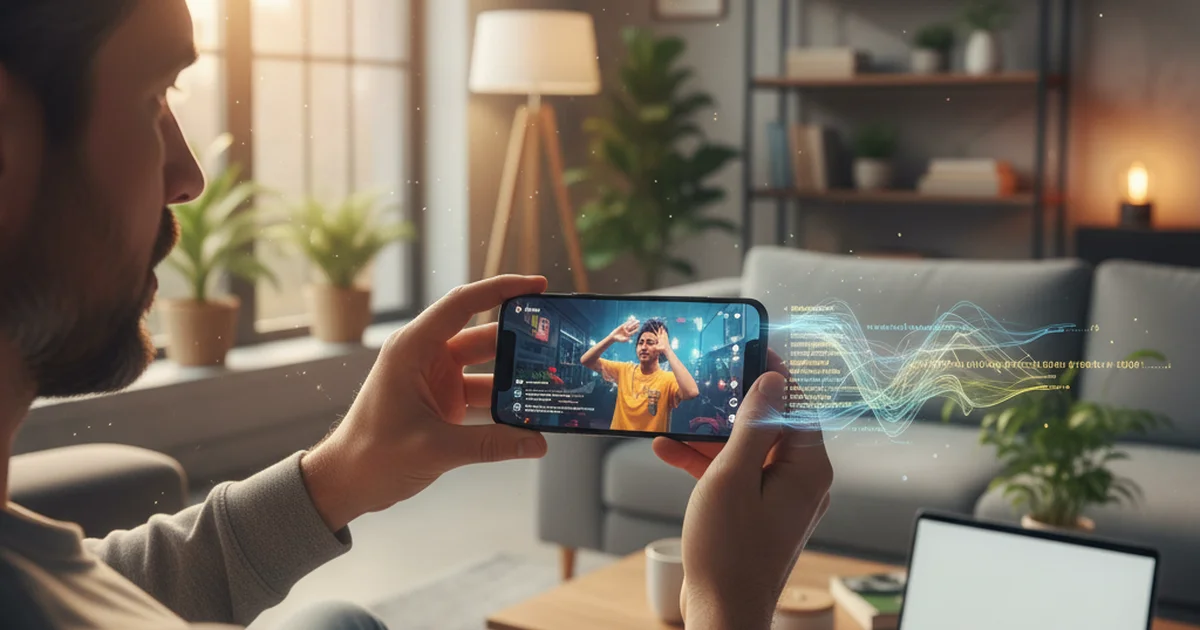
A recipe you'll cook on Sunday, a workout to try at the gym, a travel tip for next spring: some Reels are worth keeping, and Instagram gives you two ways to do it, plus a third that works outside the app.
Quick answer: to save Instagram Reels, tap the bookmark icon to add a Reel to your Saved collection inside Instagram, or tap the Share icon and then Download to put a copy in your camera roll (available on public Reels whose creators allow downloads, with an Instagram watermark). For a clean MP4 on a phone or a computer, paste the Reel link into a web-based Instagram video downloader.
Three ways to save Instagram Reels
"Save" means two different things on Instagram. Saving a Reel bookmarks it inside the app; downloading a Reel puts a video file on your device. Which one you need depends on where you want to watch it and what you plan to do with it.
| Method | Where the Reel ends up | Watermark | Works offline | Works on a computer |
|---|---|---|---|---|
| Bookmark (Save) | Saved collection in Instagram | None | — | ✅ on instagram.com |
| Instagram's Download button | Camera roll / Gallery | Username + Instagram logo | ✅ | — |
| Link downloader (MP4) | Downloads folder or camera roll | None (the streamed copy) | ✅ | ✅ |
To save Instagram Reels you only want to rewatch, bookmarking is enough. Download a file when you want to watch offline, keep a Reel after the creator deletes it, or bring it into an editing app.
Method 1: Save Instagram Reels to your Saved collection
- Open the Reel and tap the bookmark icon (on the right side of the screen, or under the three-dot menu on some versions).
- To file it, tap Save to collection and pick or create a collection such as "Recipes" or "Workouts".
- To find it later, go to your profile, tap the menu icon and choose Saved.
A bookmark points to the original post, so if the creator deletes the Reel, it leaves your Saved list too. That's the main reason to download Reels you'd hate to lose.
Method 2: Download Instagram Reels with the Download button
On a Reel from a public account, tap the Share (paper plane) icon and then Download. The video goes to Photos on iPhone or Gallery on Android.
As of October 2026, Instagram's Help Center says who can download a Reel depends on the creator's privacy settings: anyone can download Reels from public accounts unless the creator turns downloads off, Reels from private accounts can't be downloaded, and public accounts of users under 18 start with downloads switched off. Downloaded copies include an Instagram watermark, the creator's username and audio attribution, and they're meant for personal use rather than commercial projects.
That watermark is fine for rewatching and sharing with a friend. For editing, a presentation or an archive, a clean file is easier to work with.
Method 3: Save Instagram Reels as MP4 files on any device
A web downloader works from the Reel's link instead of the app's Download button, so it works the same on a phone and on a desktop. sipsip.ai's free Instagram video downloader saves Reels and video posts from public accounts as MP4 files:
- In Instagram, tap Share → Copy link on the Reel. On a computer, copy the address from the browser bar.
- Paste the link into the downloader and click Download Video.
- Preview the video, then tap Download MP4. On iPhone, open the file and use Share → Save Video to move it into Photos.
The file is the copy Instagram streams in the app, saved as H.264 video with AAC audio at up to 720p, the format that plays in the iPhone Photos app, QuickTime, Windows and every browser. On public Reels in October 2026, 5 of 5 links downloaded in 5 to 13 seconds.
Every visitor gets one free download a day across sipsip's free tools, for videos up to 10 minutes. A free account adds 15 credits with no card required; each credit covers two minutes of video, and signed-in downloads can run up to 20 minutes.
How to download Instagram videos on a computer
Instagram's Download button lives in the mobile app, so on a laptop the link method is the practical route:
- Open the Reel or video post on instagram.com and copy the URL from the address bar (links look like
instagram.com/reel/...orinstagram.com/p/...). - Paste it into the downloader in a new tab and save the MP4.
- The file lands in your Downloads folder, ready for Premiere Pro, CapCut, DaVinci Resolve or Keynote.
The same steps download Instagram videos from regular feed posts, and sipsip's TikTok video downloader follows the identical paste-and-save flow for TikTok clips.
How to save your own Reels and drafts
You can always save Instagram Reels you posted yourself: open the Reel on your profile, tap the three-dot menu and choose Download. For a Reel you haven't posted yet, Instagram lets you save the draft to your camera roll from the editing screen before sharing.
Instagram's help article on Reel drafts adds two details worth knowing as of October 2026. Drafts are stored on the device, so a draft saved on one phone isn't available on another, and uninstalling the app deletes them. Downloading your own Reel also leaves out any music you added from the Instagram music library, so keep the original clip if the soundtrack matters.
Why the Download option is missing on some Reels
Instagram treats downloading as a creator setting rather than a viewer feature. The Download button appears only when four things line up: the account is public, the creator hasn't switched downloads off, the Reel was posted after downloading became available (or the creator opted older Reels in), and the account isn't a teen account still on its default setting.
Licensed music adds one more layer. Original audio can be included in a download when the source Reel is downloadable, while tracks from the music library follow their own licensing rules. When the button is missing, bookmark the Reel to keep it within reach, or ask the creator for the original file.
Save only the sound or the words
Sometimes the part worth keeping is the audio, such as a song snippet, a voiceover or a short talk. Instagram to MP3 saves just the sound from the same Reel link as an MP3 file.
For tutorials and talking-head Reels, the text is often more useful than the video. The Instagram Reel transcript tool turns a Reel link into copyable text, which makes recipes, quotes and instructions searchable. The video transcription guide covers the same workflow for longer videos and files.
Use saved Reels responsibly
Save your own Reels freely, and keep other people's for personal viewing. Before reposting or using someone else's Reel in a project, ask the creator for permission and credit them by name.
Keep the Reels that matter
To save Instagram Reels without overthinking it: bookmark the ones you'll rewatch inside the app, use the Download button for quick camera-roll copies of public Reels, and switch to a link downloader when you need a clean file or you're working on a computer. To keep Reels, TikToks and Facebook videos as files from one place, paste the link into sipsip.ai's free Link to MP4 tool.
Frequently asked questions

I run product at a B2B SaaS company. Fifteen to twenty customer discovery calls a month is a normal pace — more during research sprints. Every call is recorded as an MP4.