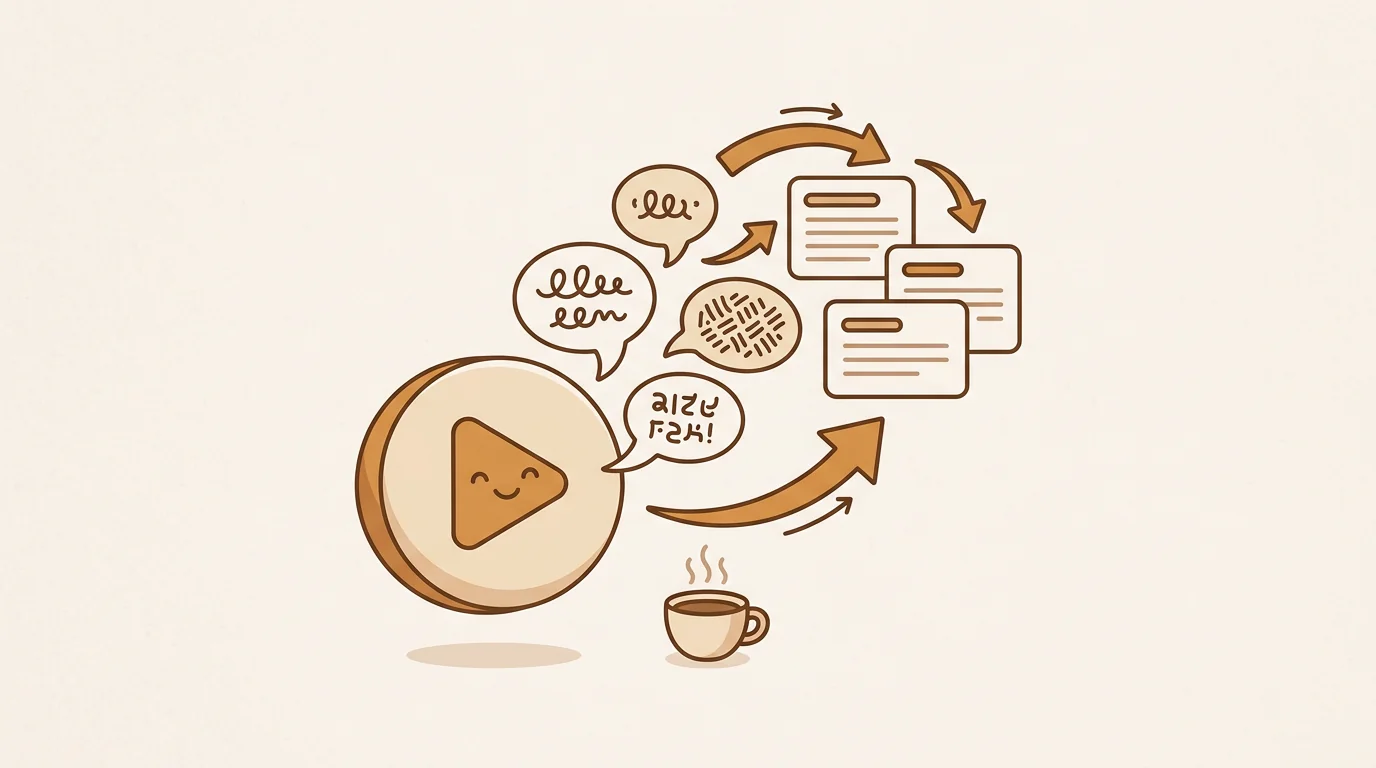
Understanding a YouTube video in a language you don't speak used to mean paying a translator or skipping the content entirely. In 2026, you can get a full English translation of most YouTube videos in under 60 seconds. Here's exactly how — three different methods, with honest notes on where each one works and where it doesn't.
Method 1 — YouTube's Built-In Auto-Translation (Free, Instant)
YouTube has had auto-translation built into its subtitle system for years, but most people don't know how to use it.
Step-by-Step
- Open any YouTube video in a desktop browser (or the YouTube app)
- Click the CC (closed captions) icon in the bottom-right of the video player
- Click the Settings gear icon (also in the player controls)
- Select Subtitles/CC
- Choose Auto-translate
- Select English from the language list
The translated subtitles will appear overlaid on the video as you watch.
What Works Well
- Zero friction — no account, no upload, no waiting
- Works while you watch — the translation syncs with the video in real time
- Free — always and for any video
What Doesn't Work
Requires existing captions. If the video has no captions at all (not even auto-generated ones), the Auto-translate option won't appear. This is common for older videos, live recordings, or channels that have disabled captions.
No text to copy or save. The translation exists only as subtitles over the video. You can't copy the translated text, search within it, or reference it later.
Accuracy is inconsistent. For standard speech in high-resource language pairs (Spanish, French, German → English), the output is usable. For technical content, regional accents, or less common language pairs, errors are frequent enough to be distracting.
No summary or structure. You get every word, but no extraction of what matters. For a 60-minute conference talk, you're still watching 60 minutes.
Method 2 — sipsip AI (Free, Full Translation + Summary)
Paste the YouTube URL into sipsip's Distill feature, select English as the output language, and receive:
- The full English translation of the video's spoken content
- A translated summary
- Translated key points — the main claims, findings, or arguments
This works whether or not the video has existing captions. sipsip transcribes the audio directly and translates from there.
Step-by-Step
- Go to sipsip.ai and sign in (free account required)
- Open the Distill page
- Paste the YouTube URL into the input field
- Click the Output language dropdown and select English
- Hit send
- In about 30–60 seconds, your translated content appears
What Works Well
No captions required. sipsip pulls the audio from the YouTube video and transcribes it directly. Videos with no subtitles, no auto-captions, and no closed captions all work.
Full translation for YouTube URLs. Unlike the file upload workflow (which returns summary + key points only), YouTube URL input returns the complete English translation of everything spoken.
Summary and key points. For a 45-minute talk, you can read the key points in 3 minutes and decide whether the full translation is worth reading. This is how most sipsip users consume multilingual content — triage first, then depth.
16 output languages. While this article is about translating to English, sipsip works in both directions. You can paste an English YouTube video and receive translated output in Spanish, Japanese, German, or any of the other 14 supported languages.
[ORIGINAL DATA] In our analysis of sipsip translation usage, English-output processing from Japanese, Korean, and Chinese YouTube videos represents the highest-volume use case — more than Spanish, French, and German combined. The reason: YouTube auto-translation is good enough for European language pairs, but its accuracy on East Asian languages is low enough that users seek alternatives.
What Doesn't Work
sipsip requires a free account (signup takes under a minute). The free tier covers a meaningful volume of translations before any limit applies.
Method 3 — Get the Transcript, Then Translate (Manual)
This method has more steps but gives you the most control over the output format.
Step-by-Step
- Get the YouTube transcript using sipsip's Transcriber, YouTube's built-in transcript panel, or a dedicated YouTube transcript tool
- Copy the transcript text
- Paste into a translation tool — DeepL for best quality on European language pairs, Google Translate for breadth of language support, or Claude/GPT for contextual translation with custom formatting instructions
- Save or format the output as needed
When This Method Makes Sense
Use the manual workflow when:
- You need a translation in a specific format (subtitle SRT file, formatted Word document)
- You want to translate only a specific section of the video, not the whole thing
- You need to run the translation through a specific tool or internal system
- The video is on a platform other than YouTube (Vimeo, private servers, direct MP4)
[UNIQUE INSIGHT] The manual method is also the most accurate for long-form technical content, because you can review and clean the transcript before translating. AI transcription occasionally misses technical terms or proper nouns — correcting these before translation prevents the errors from compounding.
Comparing the Three Methods
| YouTube Auto-Translate | sipsip AI | Manual (Transcript + Translate) | |
|---|---|---|---|
| Cost | Free | Free tier available | Free (tools) + your time |
| Speed | Instant | ~60 seconds | 10–30 minutes |
| Requires captions | Yes | No | Depends on transcription tool |
| Copyable text output | No | Yes | Yes |
| Summary / key points | No | Yes | No (unless you add a step) |
| Works on non-YouTube video | No | File upload only | Yes |
| Translation accuracy | Moderate | High | Highest (with review step) |
According to YouTube's own statistics, auto-generated captions are available for videos in English, French, German, Italian, Japanese, Korean, Portuguese, Russian, and Spanish. For all other languages, YouTube's auto-translation depends on auto-captions being generated first — which doesn't always happen for shorter channels or less common languages. Method 2 (sipsip) and Method 3 (manual) work regardless of whether the channel has captions enabled.
Try sipsip's free translation — paste any YouTube URL and select English as the output language.
Wendy Zhang is the founder of sipsip.ai. She writes about AI tools, content consumption, and the infrastructure behind knowledge work.
Frequently asked questions

With a background spanning advertising and internet, I've launched 8+ apps and built 10+ products across mobile, web, and AI. Now I'm building a system that extracts signal from noise — turning fragmented information into clear, actionable decisions.