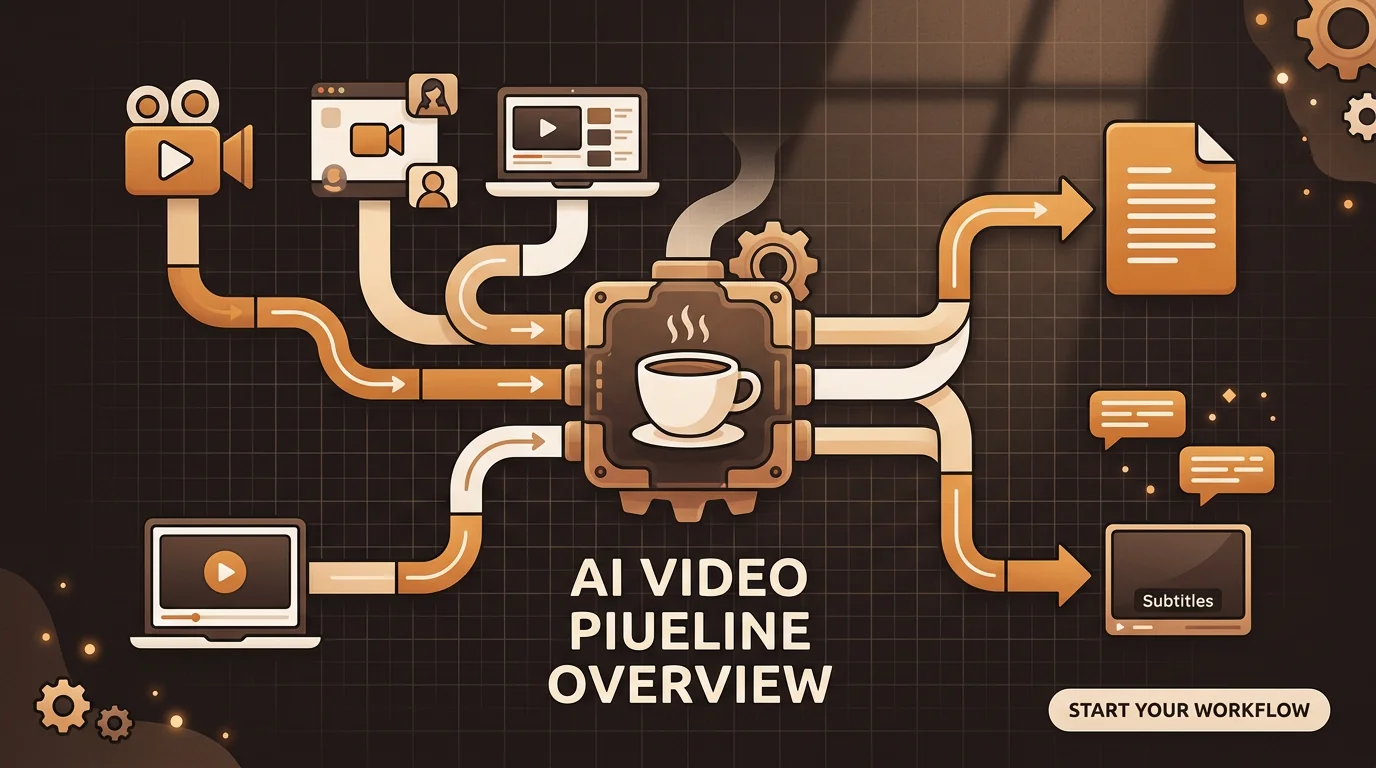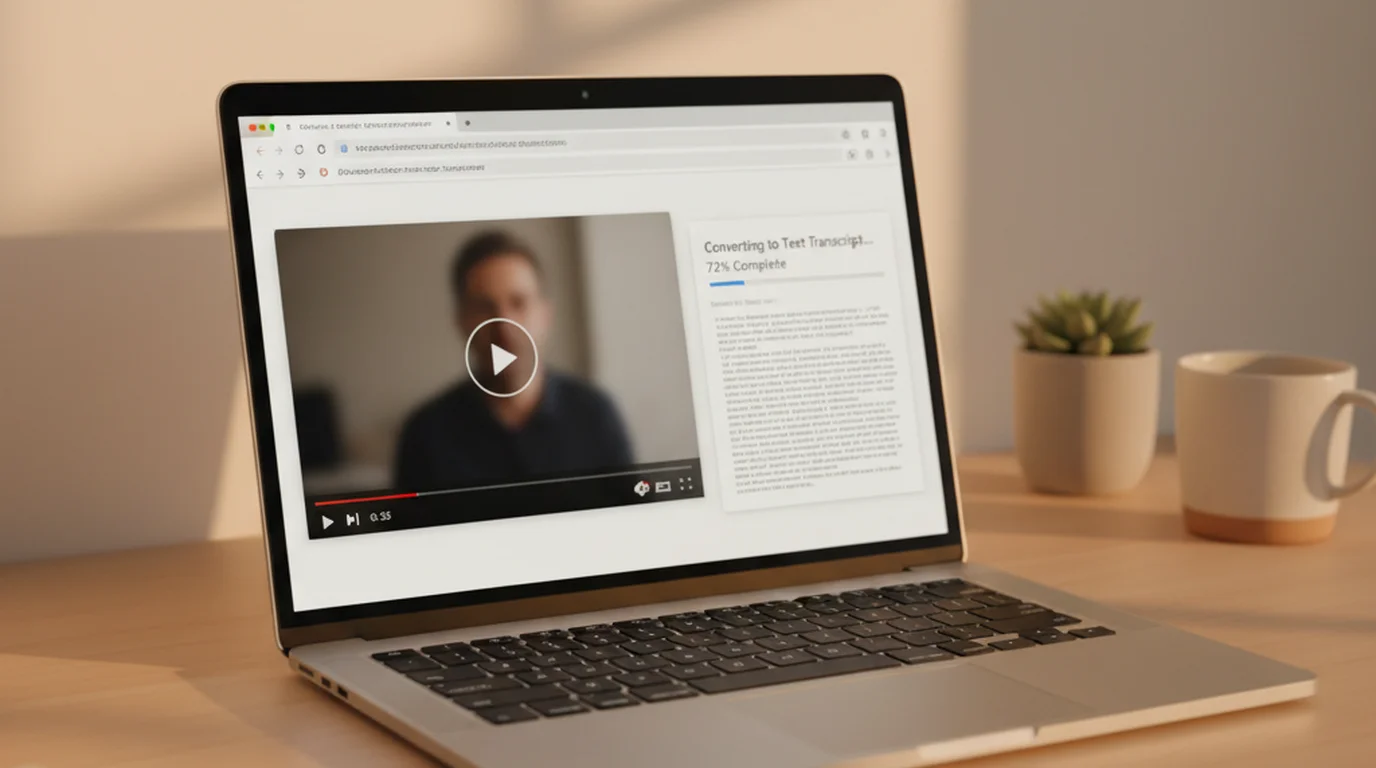
Free video transcription is possible, but the method matters. YouTube's native captions, AI upload tools, OS dictation, and local Whisper each have different accuracy profiles and format support. Here's how each one actually works — and when to use which.
Method 1: AI Upload Tool — Best Free Option for Video Files
For any video file (MP4, MOV, AVI, MKV), uploading to an AI transcription tool is the most reliable free method. sipsip.ai's Transcriber offers 30 free credits — each credit covers about 2 minutes of video. No credit card, no software installation.
How to use it:
- Go to sipsip.ai/products/transcriber
- Upload your video file (MP4, MOV, AVI, MKV, WebM — no conversion needed)
- Wait 5–10 minutes per hour of video
- Download the timestamped transcript
What you get: Full timestamped transcript, AI-generated summary, key points, and speaker identification. The same output as the paid plan — the free tier limits how many videos you can transcribe, not how accurately.
Accuracy: 94–97% on clean video audio with a single speaker. Drops to 85–92% on multi-speaker discussions or noisy background audio.
Best for: Screen recordings, webinars, conference talks, interview recordings, and any MP4 file you have locally.
Method 2: YouTube Built-In Transcript Panel (YouTube Videos Only)
For any YouTube video with captions enabled, YouTube's native transcript panel provides a free text extraction with no tools required.
How to access it:
- Open the YouTube video on desktop
- Click the three-dot menu (⋯) below the video
- Select "Show transcript"
- Toggle timestamps off if you don't need them
- Select all text and copy
What you get: Raw caption text with timestamps. No paragraph structure, no sentence grouping — exactly what YouTube's auto-captioning produced.
Accuracy: 85–92% on clear English speech. Meaningfully lower on non-native accents, technical vocabulary, and fast speech. YouTube's model wasn't trained for professional transcription — it was built for caption display, where approximate accuracy is acceptable.
Limitations: Only works for videos with captions enabled (most YouTube videos have auto-captions, but some private or older videos don't). Doesn't work for downloaded video files. Output format needs cleanup before it's usable in a document.
Best for: Quick extraction when you need the rough content of a YouTube video and precision isn't critical.
Related: Video to Text: How to Get a Transcript from Any Video File
Method 3: OS Dictation with Video Playback
macOS Apple Dictation and Windows Speech Recognition can transcribe video by playing it back through your computer's speakers and capturing the output in real time.
How to use it:
- Open a text editor (Notes, Word, Google Docs)
- Enable dictation (Mac: Edit → Start Dictation or press Fn twice; Windows: Win + H)
- Play the video with your system volume high enough for the mic to pick up
- Dictation transcribes what it hears from the speakers
Accuracy: 75–85% — lower than other methods because the audio goes through speaker-to-microphone conversion, adding room reverb, distortion, and noise. Every playback environment adds artifacts that reduce accuracy.
Best for: Occasional informal use when rough text is sufficient and you don't want to create any account or upload a file anywhere. Not suitable for professional output.
Method 4: Local Whisper (Unlimited, Technical Setup Required)
OpenAI's Whisper model is open-source and runs locally on your machine — no uploads, no accounts, no file limits, and the same model accuracy as premium cloud services. The tradeoff is a command-line technical setup.
Basic setup:
pip install openai-whisper
whisper your-video.mp4 --model large-v3
Whisper extracts the audio track and transcribes it locally. Processing time depends on your hardware — a GPU-equipped machine processes roughly 10x real time; CPU-only is much slower.
Accuracy: Equivalent to or better than cloud Whisper implementations — up to 95–97% on clean audio.
Best for: Users with technical comfort who need unlimited transcription at no per-use cost, or who need to keep audio data on-device for privacy or compliance reasons.
Free Video Transcription Methods Compared
| Method | Setup | Accuracy | Format support | Monthly limit |
|---|---|---|---|---|
| sipsip.ai free tier | Browser upload | 94–97% | MP4, MOV, AVI, MKV + more | 30 credits (about 60 min) |
| YouTube panel | Browser, no account | 85–92% | YouTube URLs only | Unlimited |
| OS dictation (playback) | Built-in, no setup | 75–85% | Any (via playback) | Unlimited |
| Local Whisper | CLI setup required | 95–97% | Any | Unlimited |
Which Format Are You Starting From?
You have a YouTube URL → Use the YouTube built-in panel for quick extraction, or paste the URL into sipsip.ai for a clean formatted transcript with an AI summary.
You have an MP4 or other video file → Upload to sipsip.ai's free tier (30 credits) or run local Whisper if you need more.
You need a rough draft and any text is fine → OS dictation playback is zero-friction.
You need high accuracy and unlimited volume → Local Whisper, once set up.
For most users who need an accurate, structured transcript of a video file without paying, the sipsip.ai free tier is the right starting point — 30 credits covers a meaningful amount of content, and the output is formatted and searchable rather than raw caption text.
Explore More
Related Article
Video to Text — Get a Transcript from Any Video File
Guide
Video Transcription Complete Guide (2026)
Related Article
Open-Source Video Transcription Tools — Free and Self-Hosted Options
Frequently asked questions

Across 8+ years, I've built full-stack and platform systems using TypeScript, Node, React, Java, AWS, and Azure, applying AI to practical problems and turning ambitious ideas into shipped products.