I'm a thorough tester. When I decide I need a tool, I actually use it — for weeks, not just a demo. So when I decided I needed to improve my English, I tested every method I could find. Watching YouTube videos was the one that actually stuck. Converting them to text was what made the learning efficient.
I'm a software developer based in Seoul. I work with English-language documentation, attend English meetings, and read English technical content daily. My spoken and written English is functional; my reading comprehension of fast native speakers on complex topics had room to improve.
The method that worked: watch the video once for comprehension, then read the transcript to absorb vocabulary and sentence structure in context. Converting YouTube to text was the step that made this workflow practical.
To convert a YouTube video to text: paste the URL into sipsip.ai's YouTube transcript tool or into the full Transcriber. The tool extracts the audio, runs speech recognition, and returns clean timestamped text in under 30 seconds. No account needed for first use.
Three Ways to Get YouTube Text
Method 1: AI transcript generator (recommended)
Paste the YouTube URL into an AI transcript tool. The tool runs speech recognition on the audio and returns text. This method:
- Works on any YouTube video, including those with no existing captions
- Produces cleaner text than YouTube's auto-captions (better punctuation, better proper noun handling)
- Returns results in 15–45 seconds for standard video lengths
- Can also return an AI summary for videos you want to screen before reading the full transcript
Method 2: YouTube's built-in transcript viewer
Every YouTube video with auto-captions has a built-in transcript viewer. To find it:
- Open the video on YouTube
- Click the three-dot menu (⋮) below the video, to the right of the share button
- Select "Show transcript"
- The transcript panel opens beside the video with timestamped text
YouTube's built-in viewer has one major limitation: the text can't be bulk-copied easily. You can copy individual paragraphs, but there's no "copy all" button. For study use, this means manually copying sections, which is slower than an AI transcript tool that returns the full text at once.
Also: YouTube's auto-captions aren't available on all videos, and accuracy on technical content can be inconsistent.
Method 3: Chrome extensions
Extensions like YouTube-Transcript and Tactiq add a "Get Transcript" button directly to the YouTube video page. These work for quick one-off extractions. The limitations: they require Chrome, they extract YouTube's existing auto-captions (no AI speech recognition), and they don't work on non-captioned videos.
How I Use YouTube Transcripts for Language Learning
My typical workflow for a 30-minute tech talk:
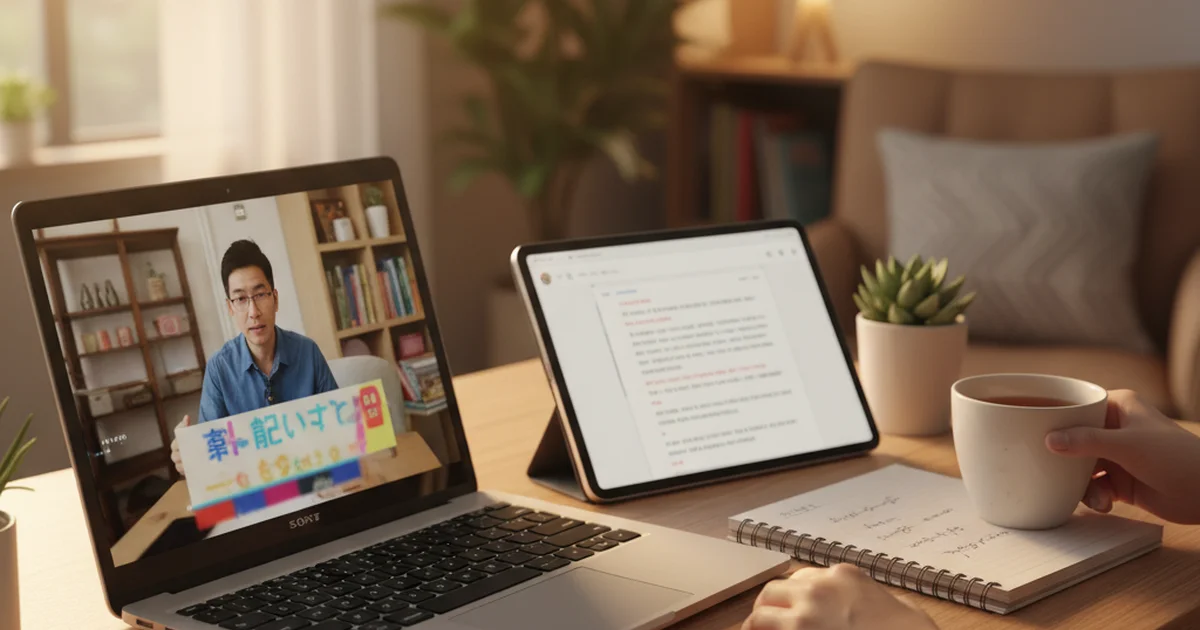
Step 1: Watch the first 5 minutes with the transcript open beside the video. I pause when I encounter vocabulary I don't immediately understand and check the surrounding sentence in the transcript for context. Reading and listening simultaneously.
Step 2: For the rest of the video, I read ahead in the transcript by 30–60 seconds while listening. This previewing technique — knowing what's coming — dramatically improves comprehension of fast speakers on complex topics.
Step 3: After watching, I skim the transcript for the 8–12 sentences I found most technically interesting or whose vocabulary was new. I copy these to Anki (a spaced repetition app) with audio timestamps so I can re-listen to the specific passage when reviewing the card.
This workflow produces better vocabulary retention than passive watching because the text provides context for new words in real usage. For software content specifically — conference talks, code walkthroughs, architecture discussions — the vocabulary is highly domain-relevant and the sentence structures are technical, which is exactly what I need to improve for my work.
According to Nation and Waring's research on vocabulary acquisition, encountering a new word in 6–7 different meaningful contexts is required for reliable retention. YouTube transcript reading provides high-frequency contextual exposure to technical vocabulary that passive listening alone doesn't achieve — because reading allows multiple re-encounters with a word in the same session, in the same sentence, compared to audio where the word passes once at speaking speed.
Best Tools for YouTube to Text Conversion
sipsip.ai YouTube Transcript Tool: Free, no account, returns transcript plus AI summary. AI speech recognition works even without existing captions. Best for comprehensive study use and content you want to archive.
YouTube-Transcript.io: Caption extraction, fast, no signup required. Works well for popular English-language content with reliable auto-captions. No AI speech recognition — fails on uncaptioned videos.
NoteGPT: Returns a summarized transcript (condensed, not verbatim). Faster for triage; less useful for detailed study where you want the full text.
TubeTranscript: Caption extraction with timestamped output. Clean interface. Same limitation as YouTube-Transcript.io on non-captioned content.
For language learning specifically, I prefer sipsip.ai because the AI speech recognition captures technical vocabulary more accurately than YouTube's auto-captions — which frequently mishandles proper nouns, technical terms, and non-standard pronunciations. The full verbatim transcript with correct technical terms is what I need for vocabulary study.
The YouTube transcript generator guide covers the full range of use cases and tool options for getting text from YouTube videos.
Jiwon Kim is a software developer from Seoul currently learning English through technical YouTube content. He uses sipsip.ai's YouTube transcript tool to generate and study transcripts from developer conference talks.
Frequently asked questions

I'm a software developer from Seoul improving my English through technical YouTube content. Converting videos to text lets me study at reading speed instead of listening speed.